Syncing to music (Beat Sync)
Matching a track in SynapseRack is a two-stage affair: decide the BPM → use it. There is only one tempo figure for the whole app, and layers and nodes alike look at it.
1. First, match the BPM
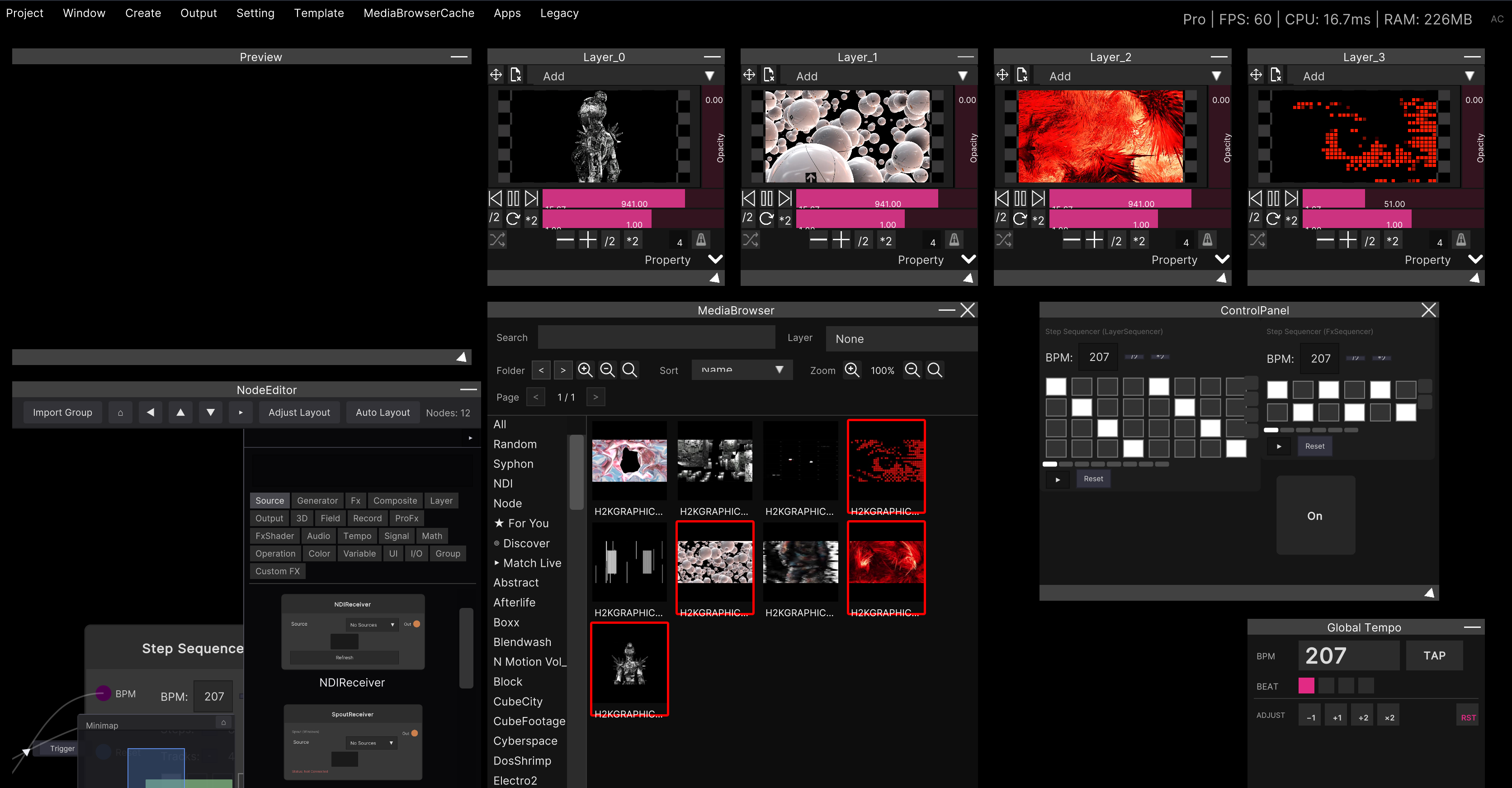
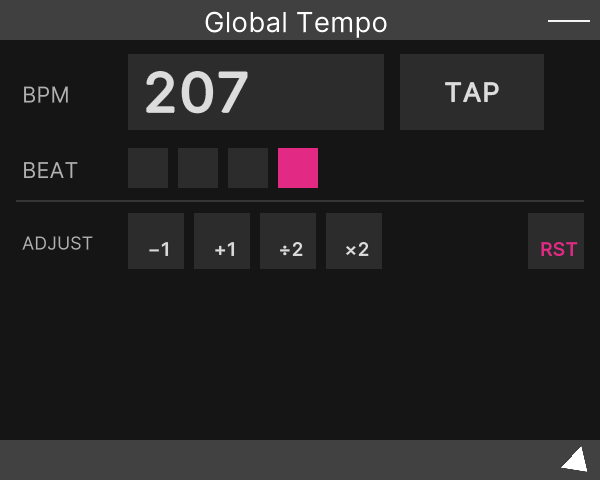
The Global Tempo window is the tempo of all of SynapseRack. There are three ways to set it.
| Way | Procedure |
|---|---|
| Type a number | Click the BPM figure and enter it directly (1 to 500, default 128) |
| Tap it in | Tap TAP along with the track. It follows the average of the last 15 taps |
| Take it from outside | Feed it in from Ableton Link / OSC / the Tap Tempo node (described below) |
Even when the number is right, the downbeat can be off. When that happens, press RST at the top of the track. The beat returns to beat 1, and layers that are beat-synced jump to the start of their video at the same time.
See Global Tempo for the details of the buttons.
2. Matching video to the BPM (a layer’s Beat Sync)
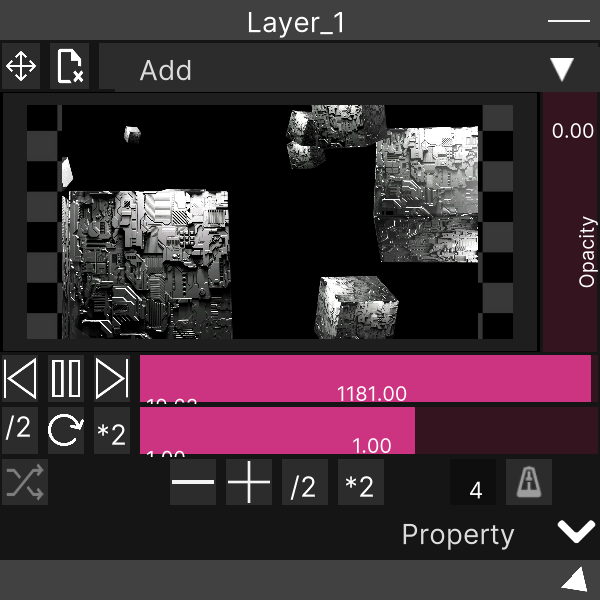
This is the metronome toggle at the right end of the bottom row of the Layer window.
Turning it on automatically adjusts the speed so that the whole clip goes round exactly once in the number of beats you specify. Change the number of beats with the − / + / /2 / *2 next to it (1 to 64, default 4 beats).
The speed is decided by this formula.
playback speed = clip length ÷ ( 60 ÷ BPM × beats )Move the BPM and the speed follows, so the video keeps up even while you are tapping it in.
The speed is capped at 5×. If you specify a small number of beats for a long clip, the required speed exceeds the cap and it cannot sync all the way. At 128 BPM, for example, 4 beats is 1.875 seconds, so a clip longer than about 9.4 seconds cannot be looped in 4 beats. When “I synced it but it drifts”, increase the number of beats (8 beats, 16 beats, and so on).
Playing a new clip turns Beat Sync back off. The number of beats is remembered per clip, but the on/off state of the sync itself is not carried over. Press the metronome again after you swap the clip.
Touching the speed buttons or the slider cancels the sync.
/2,↻and*2are all manual operations, so you drop out of sync the moment you press one. The slider takes over once you have brought it within 0.5 of the current speed (a mechanism to stop the speed jumping suddenly).
If the seam of the loop bothers you, turn on the crossfade loop in the same row as well.
3. Matching nodes to the BPM
Some nodes ride the beat without being connected to anything, and others only ride it once you connect them.
Nodes that ride the beat without being connected
| Node | How it relates to the beat |
|---|---|
| LFO | The default for Clock Source is GlobalTempo. It oscillates at divisions from 1/4 beat to 4 bars |
| Buffer Shuffle | Chops every Chunk Beats (1 to 16, default 1) beats and jumps with the probability of Chaos |
| Adaptive Mosaic | Auto BPM is on by default, and the leading tile is swapped every N beats (1 to 16, default 4) |
Nodes you connect to put on the beat
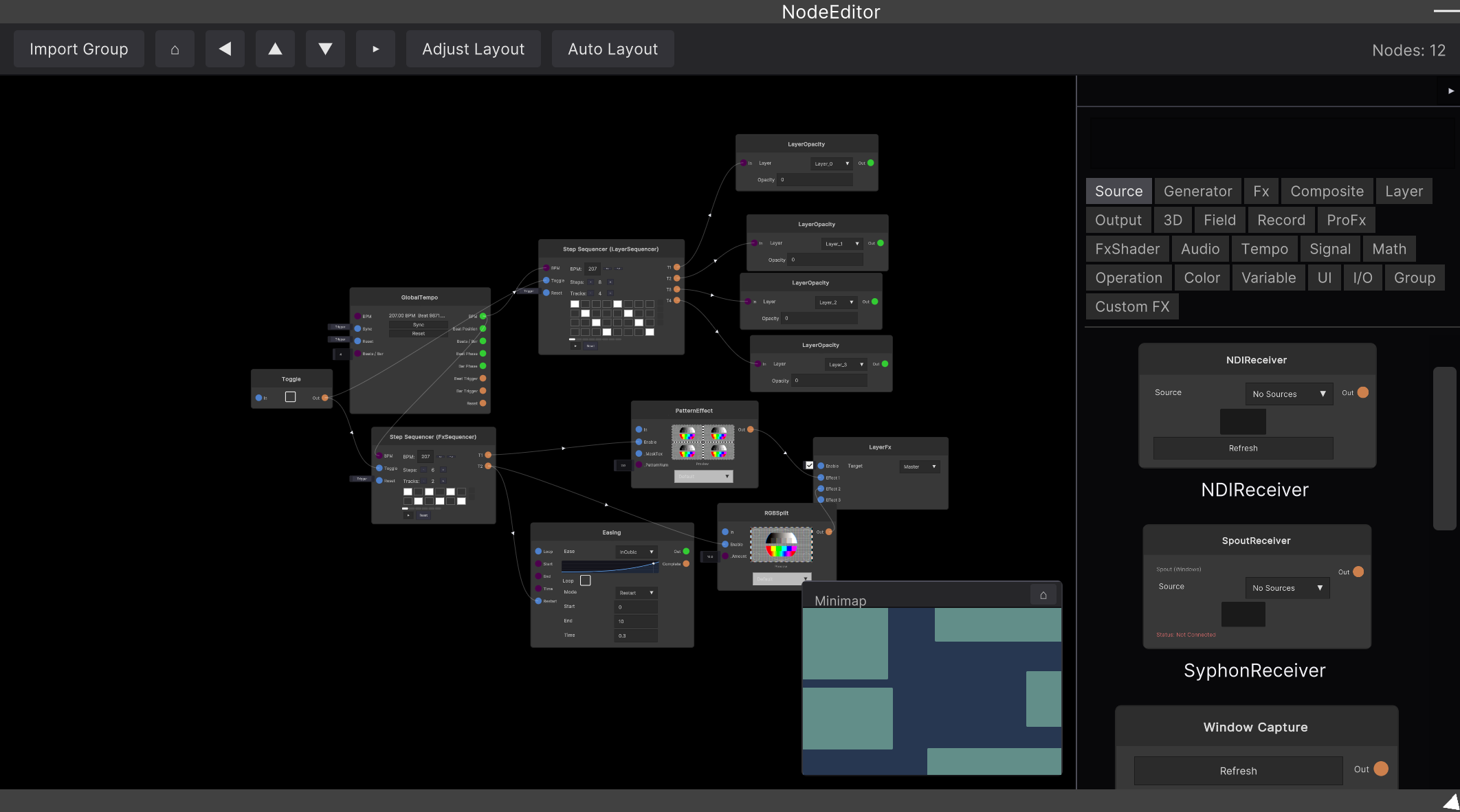
First place a GlobalTempo node. This node is the tap that takes the overall tempo out as signals, outputting the BPM, the beat position, a beat trigger, a bar trigger and so on. Wire from here.
| Node | How to connect it |
|---|---|
| Clock | Plug in GlobalTempo’s BPM or Beat Position. You can make triggers divided down from 1/4 beat to 4 bars |
| Step Sequencer | Plug in GlobalTempo’s BPM. 2 to 32 steps, 1 to 16 tracks |
| Content Player | With BPMSync and Beat, the same beat sync as a Layer is available on the node side too |
Clock and Step Sequencer do not ride the overall tempo just by being placed. Both run on their own BPM (default 120). This is deliberate — there are times when you want them running at a different speed from everything else. When you do want them to match, wire
BPMfrom a GlobalTempo node.
The LFO’s “1 bar” is fixed at 4 beats. Changing the time signature (Beats / Bar) in Global Tempo leaves the LFO’s bar divisions at 4 / 8 / 16 beats. When you want it to follow the time signature, use Clock.
4. Syncing with the outside world
| Partner | What you can do |
|---|---|
| AbletonLink | Shares tempo and beat with Ableton Link capable apps on the same network. Plug the Tempo output into a GlobalTempo node’s BPM input and everything follows Link (the LFO can select AbletonLink directly in Clock Source) |
| MIDI Clock | Sends the overall BPM out as MIDI clock. Start / Stop / Continue can also be sent |
| Tap Tempo | A node that makes a BPM from taps. Plug its BPM output into a GlobalTempo node’s BPM input. You can tap it from a MIDI pad |
| OSC | You can rewrite a GlobalTempo node’s BPM from OSC input and output |
MIDI clock is send-only. You cannot receive MIDI clock from external gear to match the tempo. When you want to match a DAW, use Ableton Link.
5. Reacting to “sound” rather than “the beat”
Apart from BPM sync, there is also a way to react to the loudness of incoming audio.
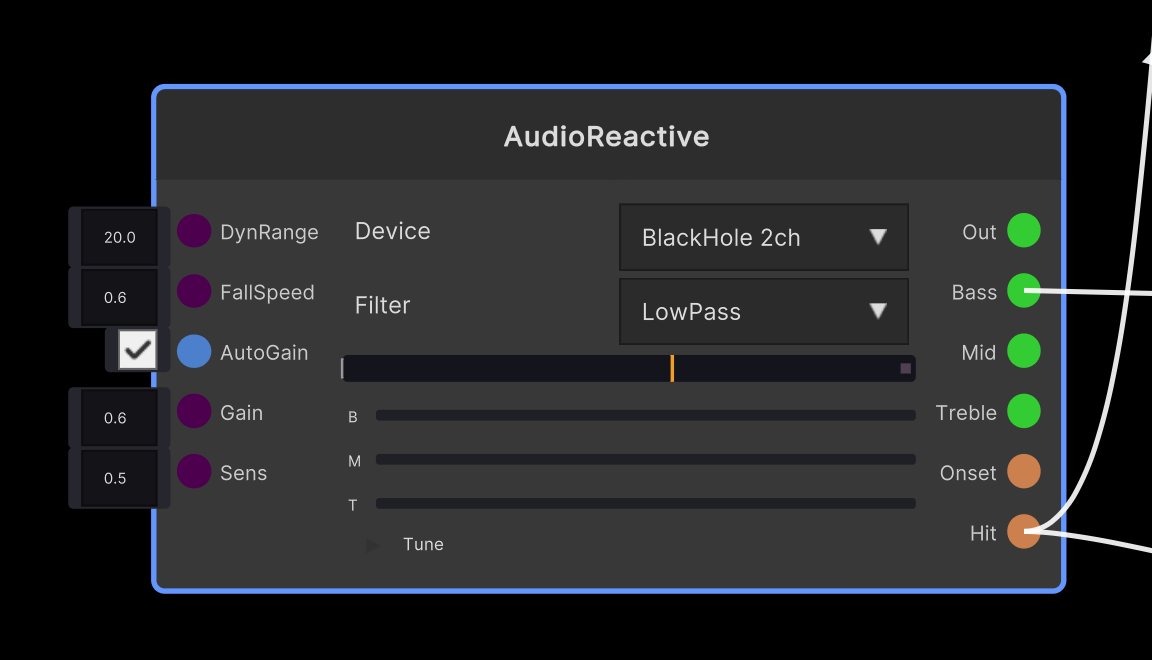
The AudioReactive node outputs volume, low, mid and high
bands, plus the attack of the sound (Onset / Hit) as triggers.
There is no feature that detects BPM automatically from audio. Nodes that react to sound only see “how loud it is right now”. Think of the tempo as something you decide on the Global Tempo side.
The two can be combined. Plugging Onset into Clock’s Sync, or
into Buffer Shuffle’s Chop, lets you re-chop at the
moment sound actually happened.
Reacting to the sound in the room (AudioReactive) walks through the actual wiring, with diagrams.
Video
Related
- Global Tempo — the reference for the window that holds the tempo
- Layer — where the Beat Sync toggle lives
- Reacting to the sound in the room (AudioReactive) — responding to the sound itself rather than the BPM
- Crossfade loop — hiding the seam of a loop
- MIDI mapping — assigning TAP and RST to pads