Media Browser
This is the library of your video clips.
It used to be called ContentsBrowser. The current name is Media Browser. Not only videos and images, but Spout / Syphon, NDI and node outputs now sit on the same shelf, so its role has grown from “managing video files” to “every way clips get in”.
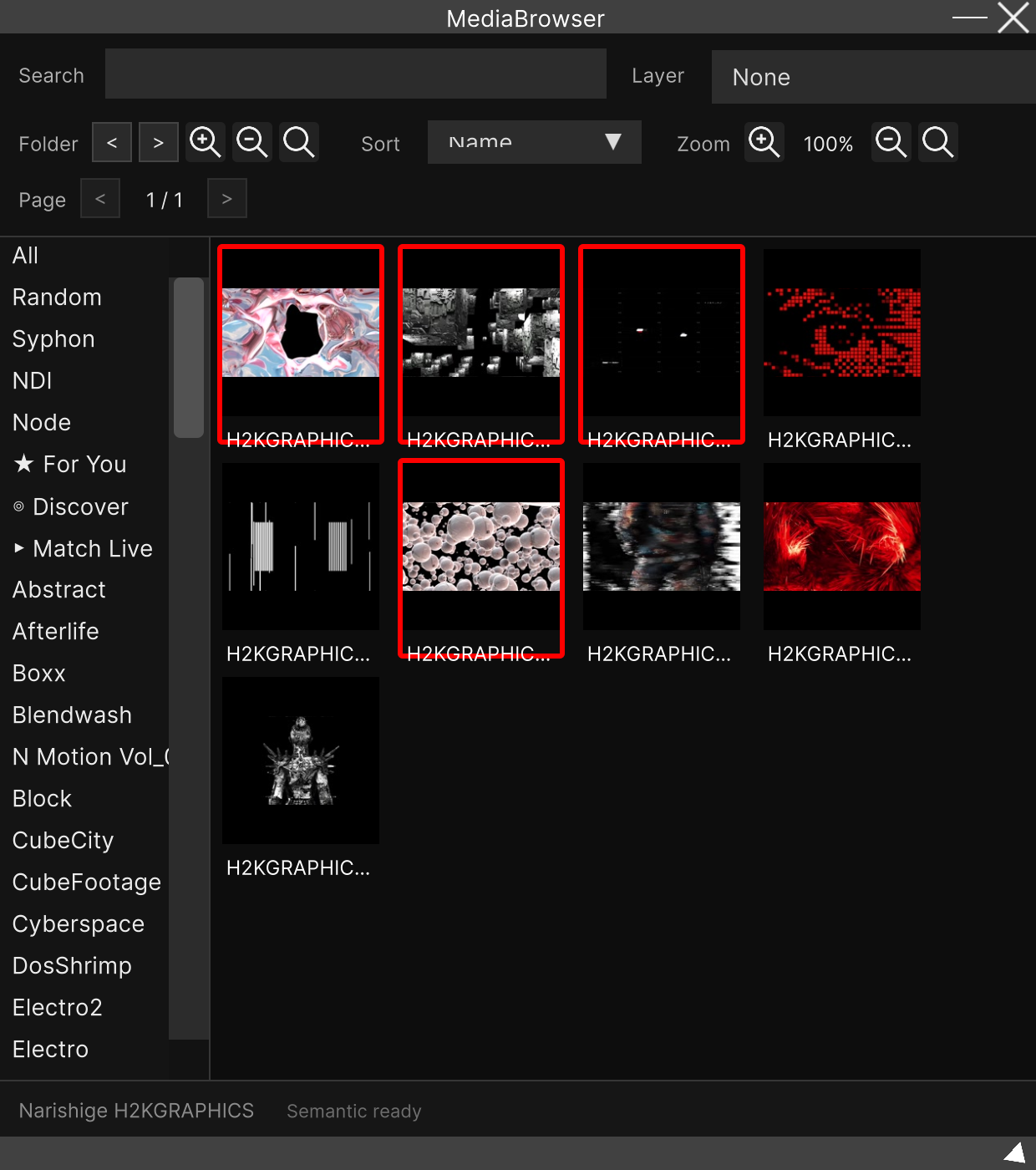
Opening it
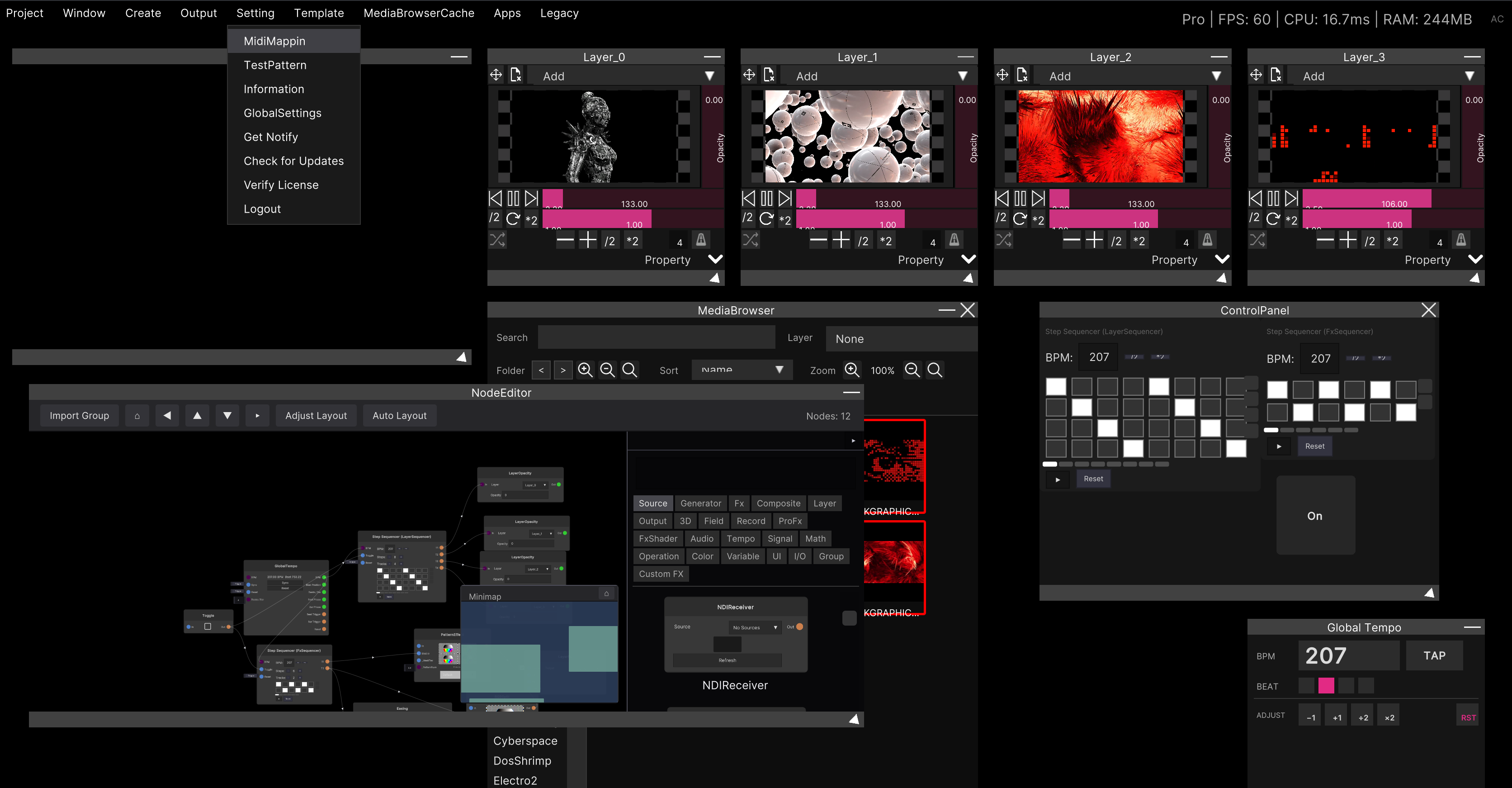
Create → MediaBrowser in the menu bar. You can open as many as you like. Close one with the × at the right of the title bar, and rename it by double-clicking the title bar.
Layout of the window
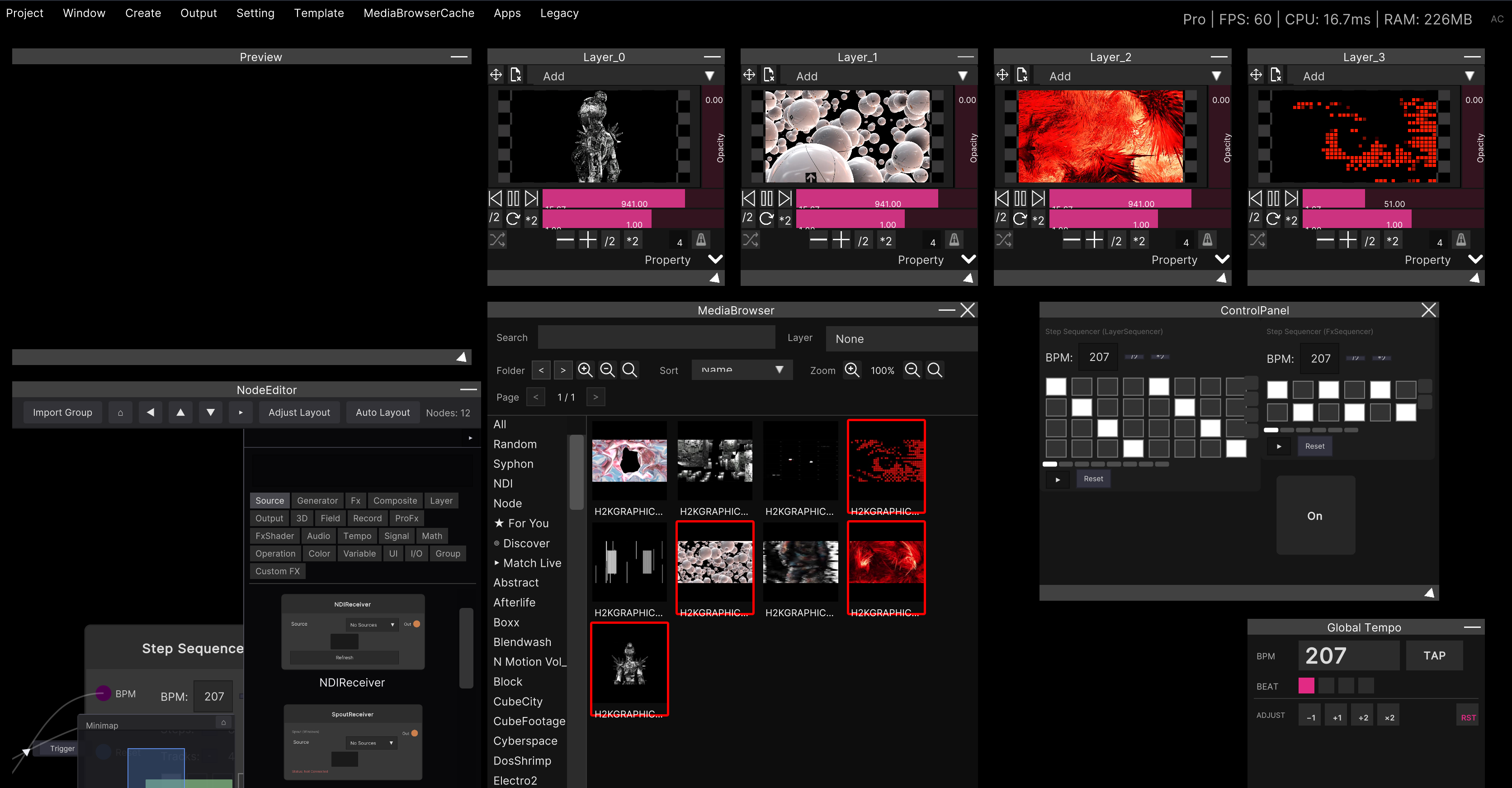
Two rows of toolbars at the top, the folder list on the left, thumbnails in the middle, and the status bar at the bottom.
| Location | Contents |
|---|---|
| Search | Filtering by name and tag |
| Layer | Pins the destination for the clips you click (described below) |
| Folder < > | Steps through folders. The three on the right control the text size of the list on the left (larger / smaller / reset) |
| Sort | Name / Date / Type |
| Zoom | Thumbnail size (40%–200%) |
| Page < > | Steps through pages. One page holds 8 × 8 = 64 items |
The status bar at the bottom shows the current folder name on the left and the semantic search state on the right.
The folder list on the left
From top to bottom, it is arranged like this.
| Row | Contents |
|---|---|
| All | The whole library |
Random | Shuffle. Up to 64 items, and the search box is ignored |
| Spout (Syphon on macOS) | The Spout / Syphon sources currently detected |
| NDI | The NDI sources currently detected |
| Node | The video that MediaOut nodes in the node graph are putting out |
| ★ For You / ◎ Discover / ▶ Match Live | Recommendations from semantic search (shown only when it is available) |
| Below that | The folders you created yourself |
The contents of Spout / Syphon / NDI / Node are always updated automatically.
There is no reload button. Start sending from another app and it simply appears in the list.
Editing is not possible in the external source folders. While
Spout/Syphon/NDI/Nodeis open, moving, tagging, thumbnail updates, deleting and reordering are all disabled. They are not actual files.
Right-click a folder row to get the following menu.
| Item | What it does |
|---|---|
| New Folder | Creates a new folder |
| Rename | Renames it |
| Delete | Removes the folder, and any clips that exist only in it, from the library (the original files are not deleted) |
| Sort: Manual | Uses the order you arranged yourself |
| Sort: File Name | Uses file name order |
The folder rows themselves can also be reordered by dragging.
Working with thumbnails
| Action | What it does |
|---|---|
| Click | Selects it and assigns it to a layer at the same time |
| Ctrl / Cmd + click | Only adds to or removes from the selection (no assignment) |
| Shift + click | Selects the range from the position you clicked last |
| Drag | Takes it to a layer or a folder |
| Right-click | Menu |
The color of a thumbnail’s border has a meaning.
- Blue border = selected
- Red border = playing on that layer
- Dark red with
⚠ MISSING= the original file cannot be found - ✕ / ⚠ in the top right = the codec is unsupported / needs attention
Hover the mouse over one and a tooltip shows the file name, codec, resolution, fps and duration.
Right-click menu
When only one item is selected.
| Item | What it does |
|---|---|
| Move to… | Moves it to another folder (+ New Folder... at the bottom also creates a new one) |
| Remove from this folder | Takes it out of this folder |
| Update Thumbnail | Captures the thumbnail again |
| Edit Tag | Edits tags |
| Delete from Library | Deletes it from the library (the original file is not deleted) |
| Open File Location | Opens the file’s location |
With two or more selected, right-clicking one of the selected items gives you a bulk menu
(Move ... items to... / Tag ... items... / Regenerate ... thumbnails / Delete ... items from Library).
Move / Tag / Regen / Delete / Clear buttons also appear in the status bar at the bottom.
Clips that are playing on a layer cannot be bulk-deleted. When you delete a single one, a confirmation to stop playback and delete it appears.
Sending clips to a layer
There are three ways to send them.
1. Open the receiver on the layer side, then click
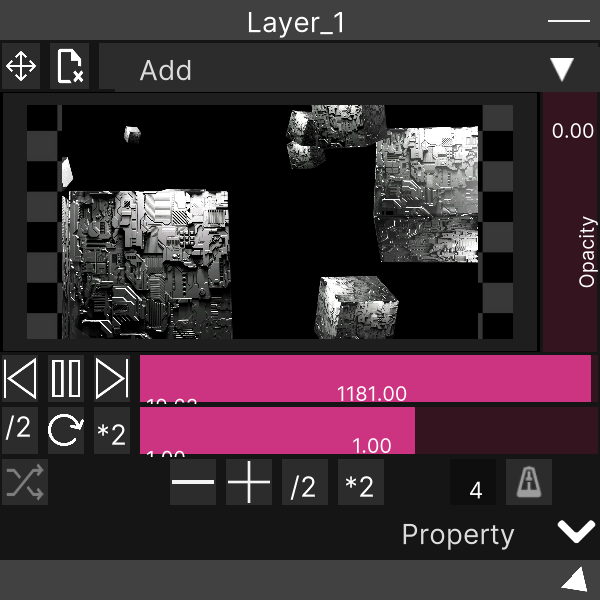
Click the preview surface of the Layer window to put it into “waiting for an assignment”, then click a thumbnail in the Media Browser. The waiting state clears itself once the assignment is done.
If you put several layers into the waiting state, one click loads the same clip into all of them at once.
2. Pin the destination with the Layer dropdown
Choose a destination in the Layer dropdown at the top, and every clip you click from then on goes there without exception.
Choose None to release the pin.
The list holds not only layers but also nodes that can receive video (ContentPlayer and the like). The pin is saved with the project.
3. Drag
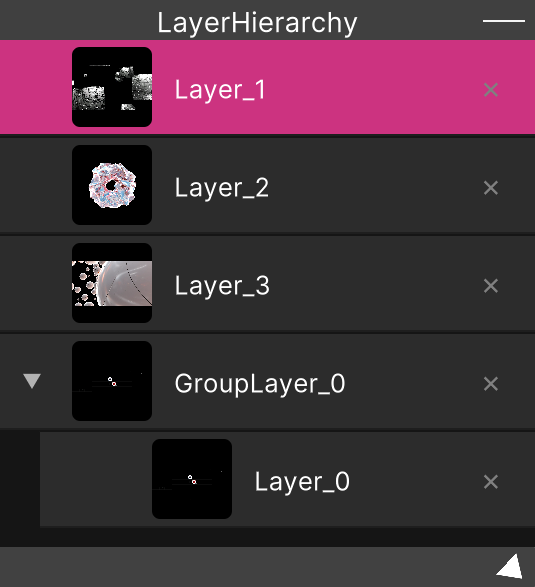
Grab a thumbnail and drop it on the preview surface of Layer or on a row in Layer Hierarchy.
Even if you drag several at once, only the first one is loaded.
You cannot hand clips over by dragging onto an OS window that you detached with
F10. Dragging across panels is not possible by design. To send to a detached layer, click the preview on the layer side, or pin it with the Layer dropdown.
Importing clips
Drop files or folders directly onto the window. If you drop a folder, its contents are searched recursively.
These are the extensions you can import.
| Type | Extensions |
|---|---|
| Video | .mp4 .mov .avi .mkv .webm .flv .wmv .m4v .mpg .mpeg |
| Image | .png .jpg .jpeg |
| Shader | .hlsl |
Which folder they land in depends on where you drop them.
- On a folder row on the left → that folder
- The thumbnail area → the folder currently shown
- The preview of Layer or a row in Layer Hierarchy → into the
Tempfolder, with the first one going to that layer
Thumbnails for images are not created on import. Run MediaBrowserCache → RegenerateMissingThumbnails in the menu bar to create them.
Dragging onto a folder copies by default
Drop a thumbnail on a folder row on the left and it stays in its original folder while a new reference is added. Hold Alt (Option on macOS) while dropping to move it instead.
Reordering
You can drag thumbnails to reorder them only while a specific folder is open.
Reordering is not possible in All / Random / while searching / in external sources.
Reordering inside a folder sorted by file name switches it to manual order without asking. To go back, right-click the folder and choose
Sort: File Name.
Search
The search box does a partial match on names, tags and auto tags. It runs 0.3 seconds after you stop typing.
Where semantic search is available, items that are close in meaning are appended in order
after the partial-match results.
The tooltip shows a similarity score such as sim: 0.42.
The display at the right of the status bar tells you the state.
| Display | Meaning |
|---|---|
Semantic ready | Ready to use |
Indexing 120/500 | Building the index |
Semantic: models not found | The models cannot be found (partial match only) |
Search and folder selection cancel each other out. Typing in the search box clears the folder selection (search always covers the whole library), and choosing a folder empties the search box.
Tags
Right-click a thumbnail → Edit Tag.
Every tag in the library is listed, with a ✓ on the ones that are applied. Click to add or remove them.
Auto tag suggestions are listed below with a ✨, and ✨ Approve all accepts them all at once.
+ Add New Tag... at the very bottom creates a new tag.
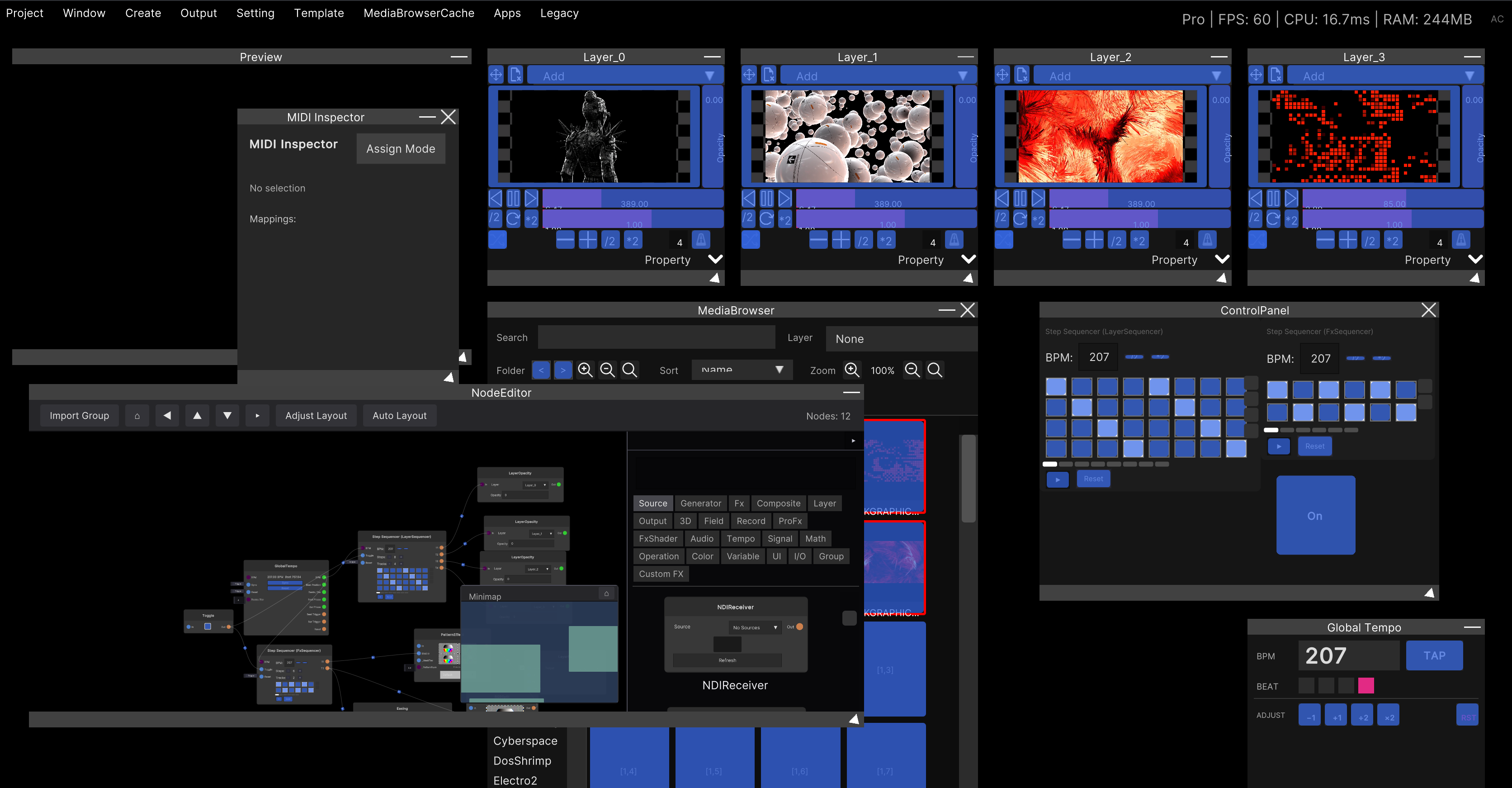
MIDI
There are two things in the Media Browser you can assign to MIDI.
- Each thumbnail cell (8 × 8 = 64 of them) — hit one and the clip in that cell is assigned
- Folder stepping (previous / next) and page stepping (previous / next)
In assign mode, placeholders appear even in empty cells, so you can assign positions that do not have a clip yet.
MIDI assigned to a cell only performs the “send to a layer” action. The selection does not change. The destination is decided by the Layer dropdown at the top, or by the waiting-for-an-assignment state on the layer side.
Search, sort, zoom, the Layer dropdown, tags and deletion are not available over MIDI.
Managing the cache
MediaBrowserCache in the menu bar gathers the operations that apply to the whole library.
| Item | What it does |
|---|---|
| ClearAllCache | Deletes all content information and thumbnails (a restart is required afterwards) |
| CheckMissingFile | Finds the clips whose original file cannot be found |
| RegenerateMissingThumbnails | Rebuilds thumbnails only for the clips that do not have one |
| ImportFromDirectory | Choose a folder and import it in bulk |
The clip data, thumbnails and tags are placed under Cache in the user data folder.
Deleting from the library does not delete the original file.
Related
- Layer — where the clips go
- Loading videos / Loading Spout
- Source folder structure