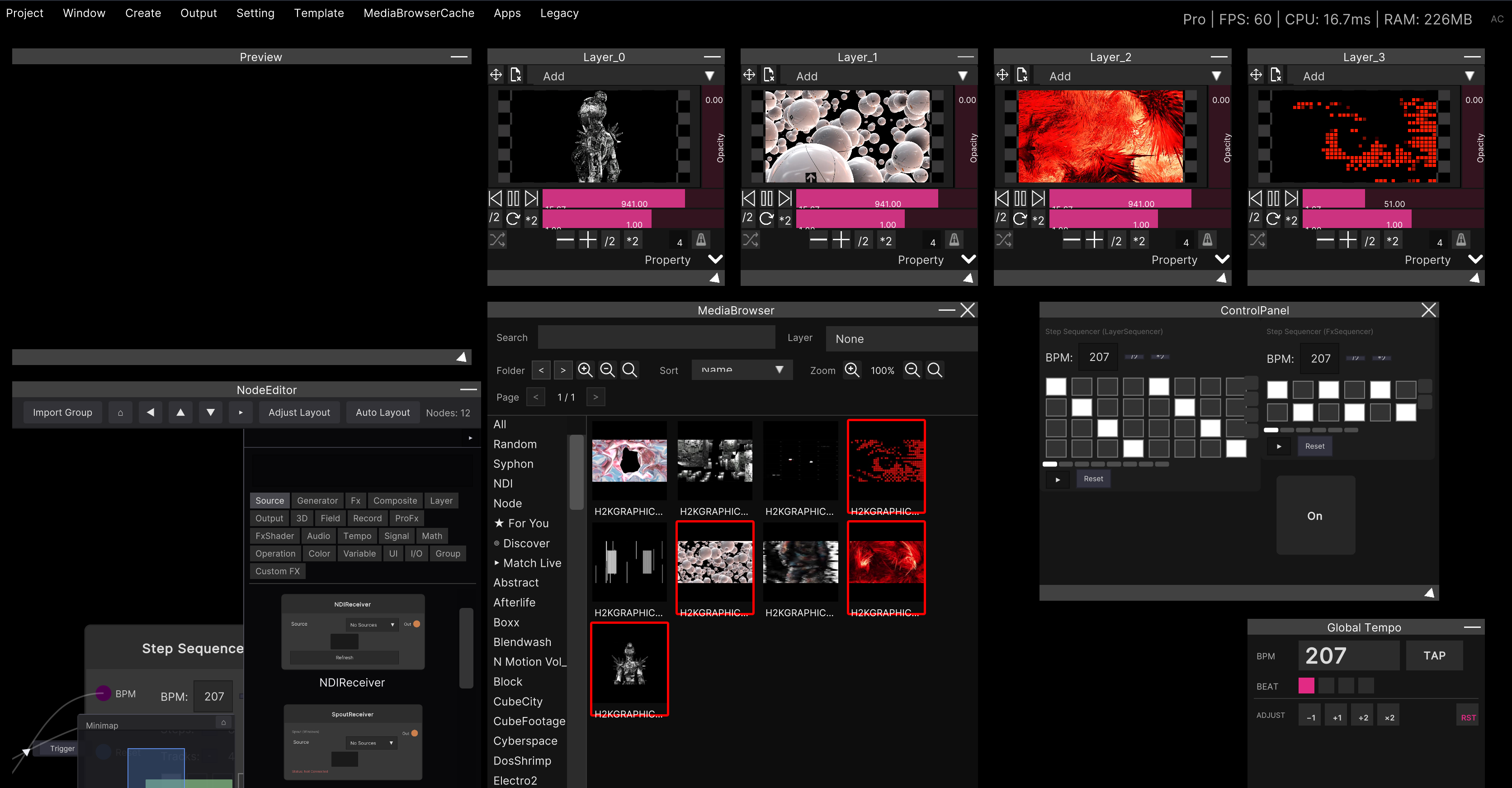
Keyboard mapping
Even without a MIDI controller, you can assign your computer’s keyboard through the same mechanism. There is no dedicated mode. Inside exactly the same assign mode as MIDI mapping, you just hit a key instead of moving a controller.
Procedure
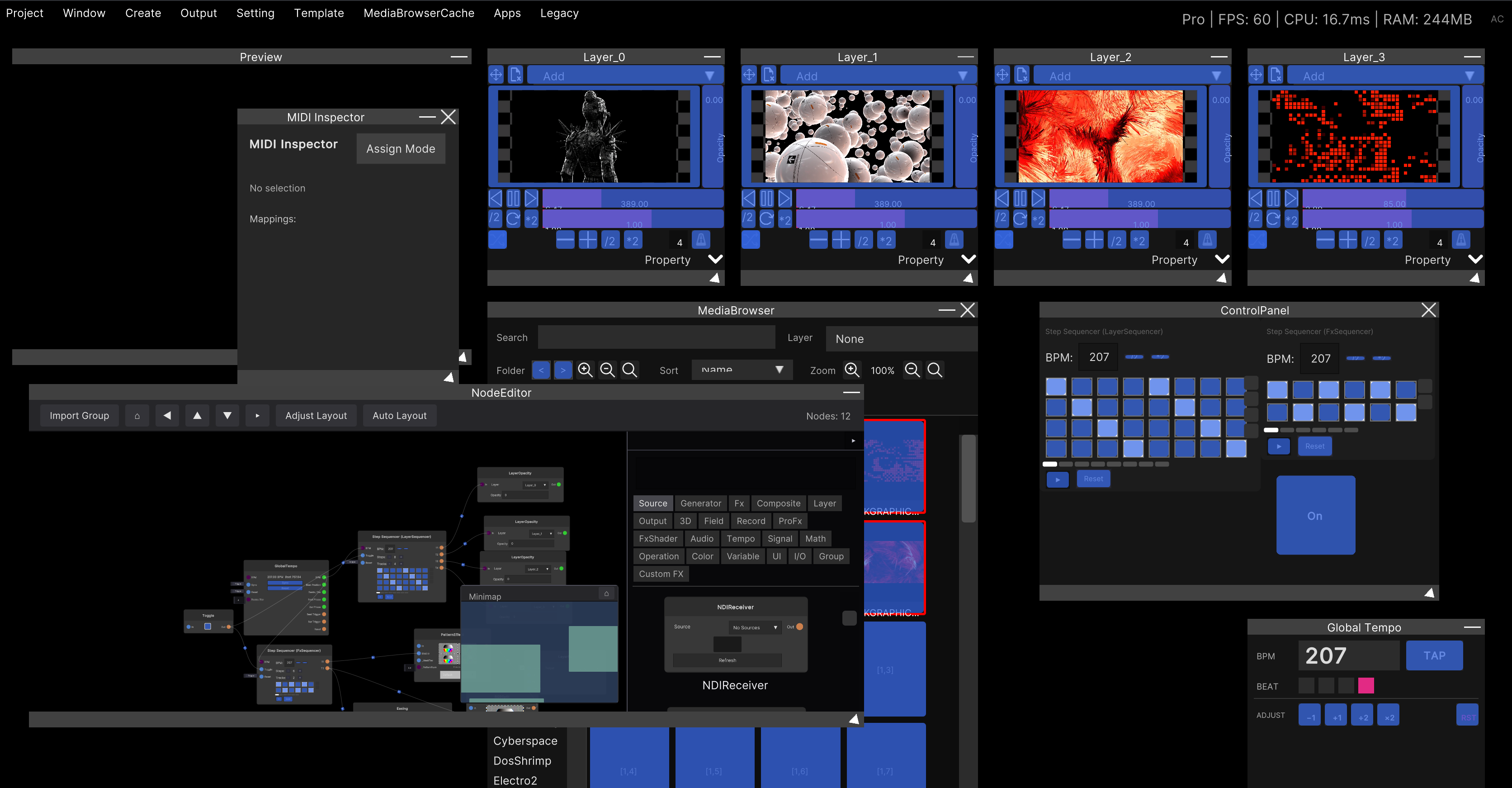
Enter assign mode with Setting → MidiMapping in the menu bar.
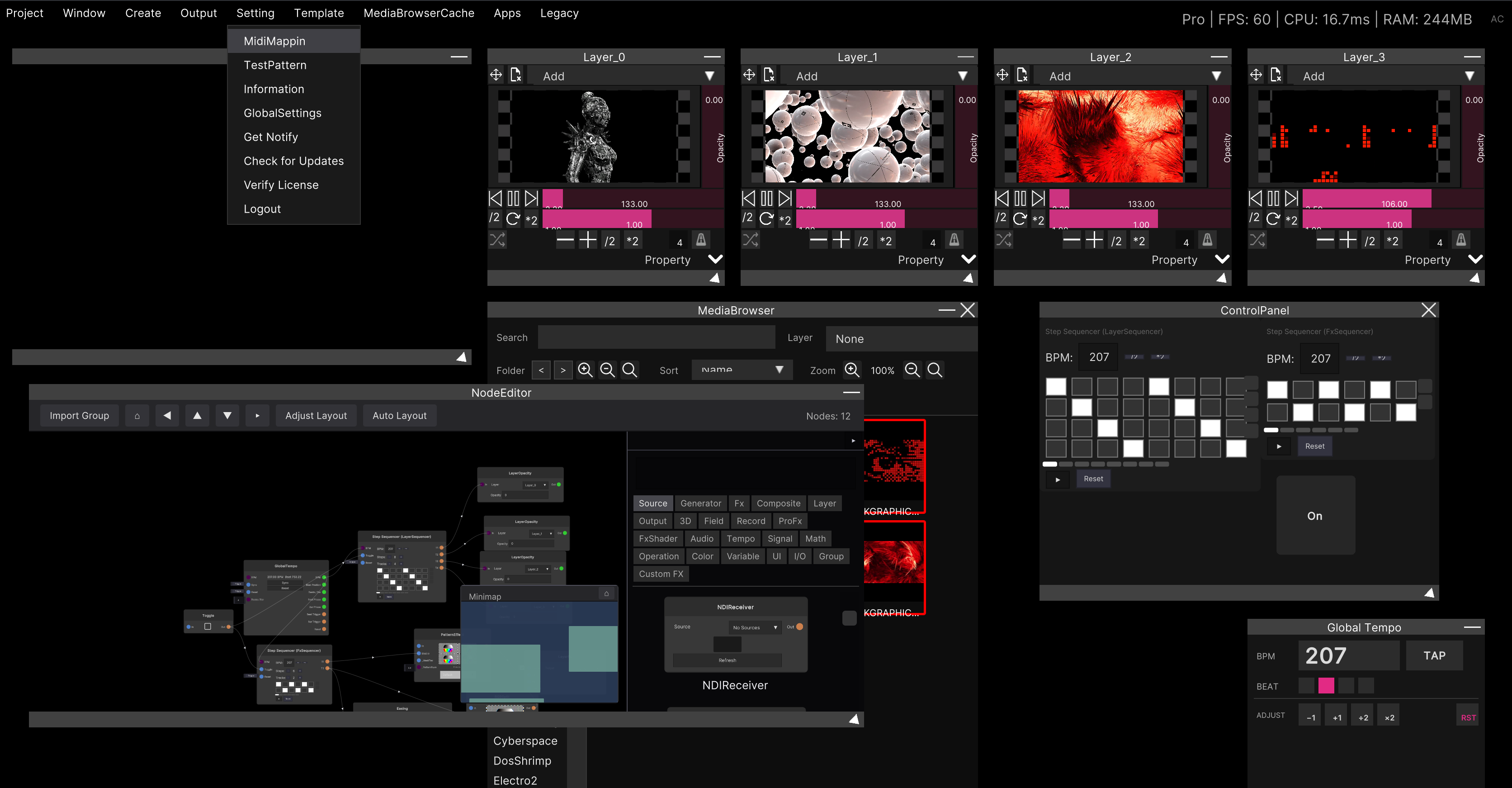
- The UI elements that can be assigned turn blue
- Click the one you want and it turns red
- In that state, press a single key and it is assigned
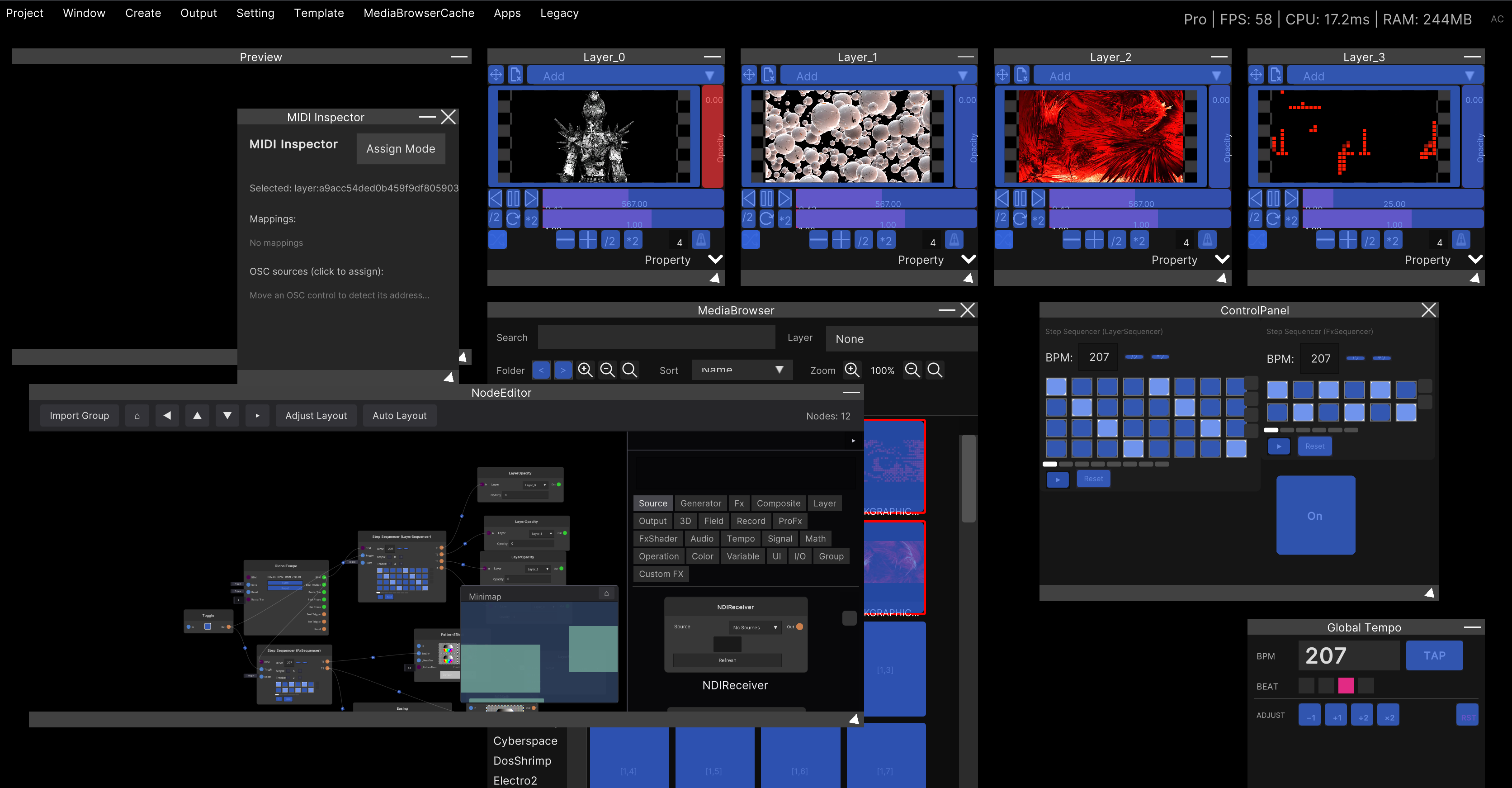
It is done once a line such as Key Space is added to Mappings: in the MIDI Inspector.
The × at the right end of the line removes it.
Leave the mode by choosing Setting → MidiMapping again, or with the Assign Mode button in the MIDI Inspector.
How keys act
A key sends 1 the moment you press it and 0 the moment you release it. In other words, it is on only while held.
| Assigned to | On press | On release |
|---|---|---|
| Buttons and toggles | Fires once | Nothing happens |
| Sliders and faders | Swings to maximum | Returns to 0 |
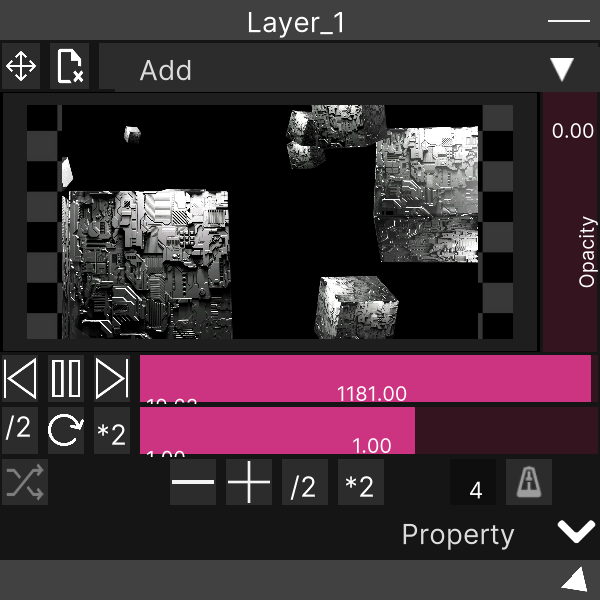
Assigned to a slider, it goes to the maximum only while held. A key has no intermediate values, so assigning it to a layer’s Opacity gives you “fully open only while held”. That suits flash-like uses, but if you want smooth movement, use a MIDI knob or OSC.
Keys that cannot be assigned
The following keys are excluded and cannot be assigned no matter how you press them.
- Mouse buttons
- Ctrl (both left and right)
- Shift (both left and right)
- Tab
Combinations with modifier keys (in the form of Ctrl+1) cannot be registered. What is recorded is a single key only.
The UI you can assign
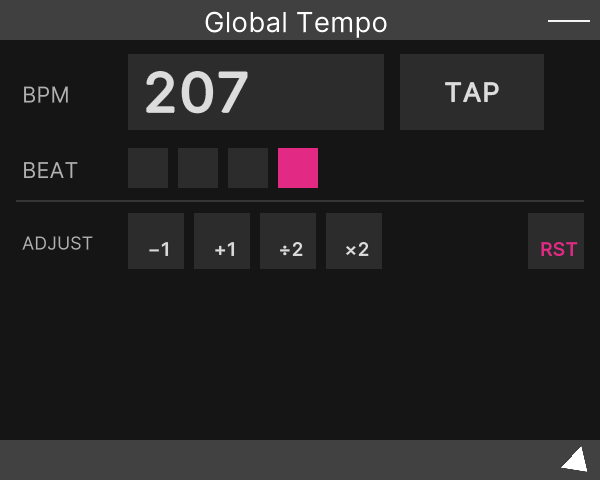
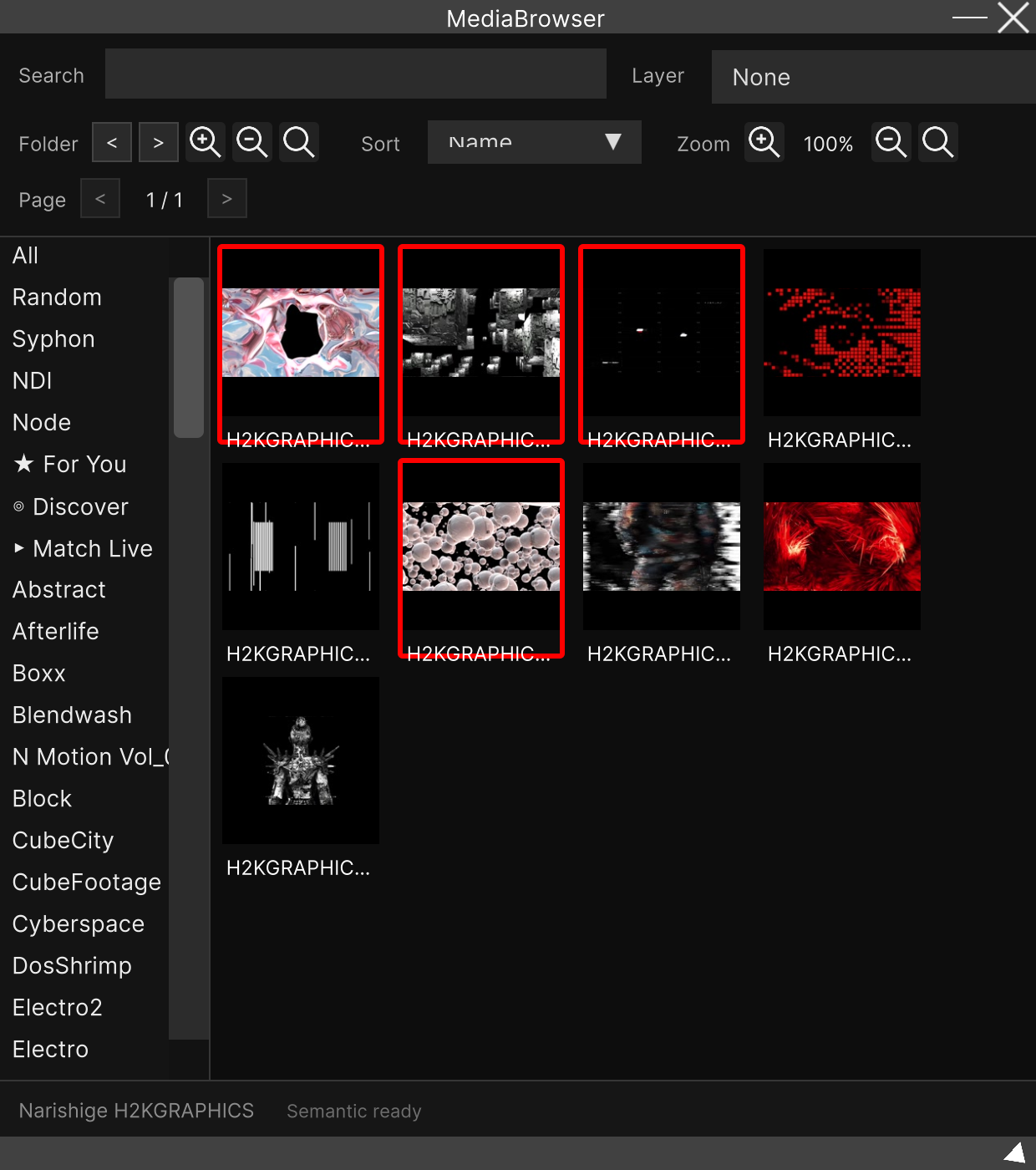
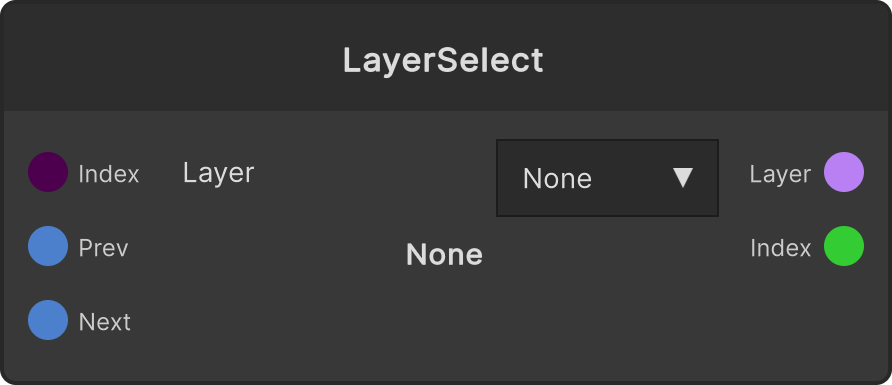
Exactly the same as MIDI. A layer’s Opacity and playback buttons, the various buttons of Global Tempo, the thumbnails of the Media Browser, the node UI in the Node Editor and the widgets of a Widget Panel are all targets. See MIDI mapping for the detailed list.
There is nothing wrong with assigning both MIDI and a key to the same UI element. It works from either.
Key input is picked up wherever you are on screen. Even while you are typing characters into a text field, an assigned key still responds at the same time. Keep this in mind when assigning keys that are easy to trigger by accident while entering a name (Space, digits, common letters).
The bulk grid assignment of the Media Browser is not available from the keyboard. The mechanism that fills in automatically from the four corners is for MIDI pads only. Assign keys one cell at a time.
How it is saved
Key assignments are saved in the same place as MIDI, together with the project (.synapse).
Reopen the project and they come straight back.
Related
- MIDI mapping — the detailed explanation of assign mode is here
- OSC input and output — controlling it from an external app