OSC input and output
OSC is the mechanism for driving SynapseRack from external software such as a controller app on your phone or TouchDesigner. It also lets SynapseRack send values out.
There are two ways to go about it.
| Way | When it suits |
|---|---|
| Assign directly to the UI on screen | When you want to drive existing UI — a layer’s Opacity, the play button — from outside as it is |
| Place OSC nodes | When you want to process the received value with nodes, or send values out of SynapseRack |
First, enable it
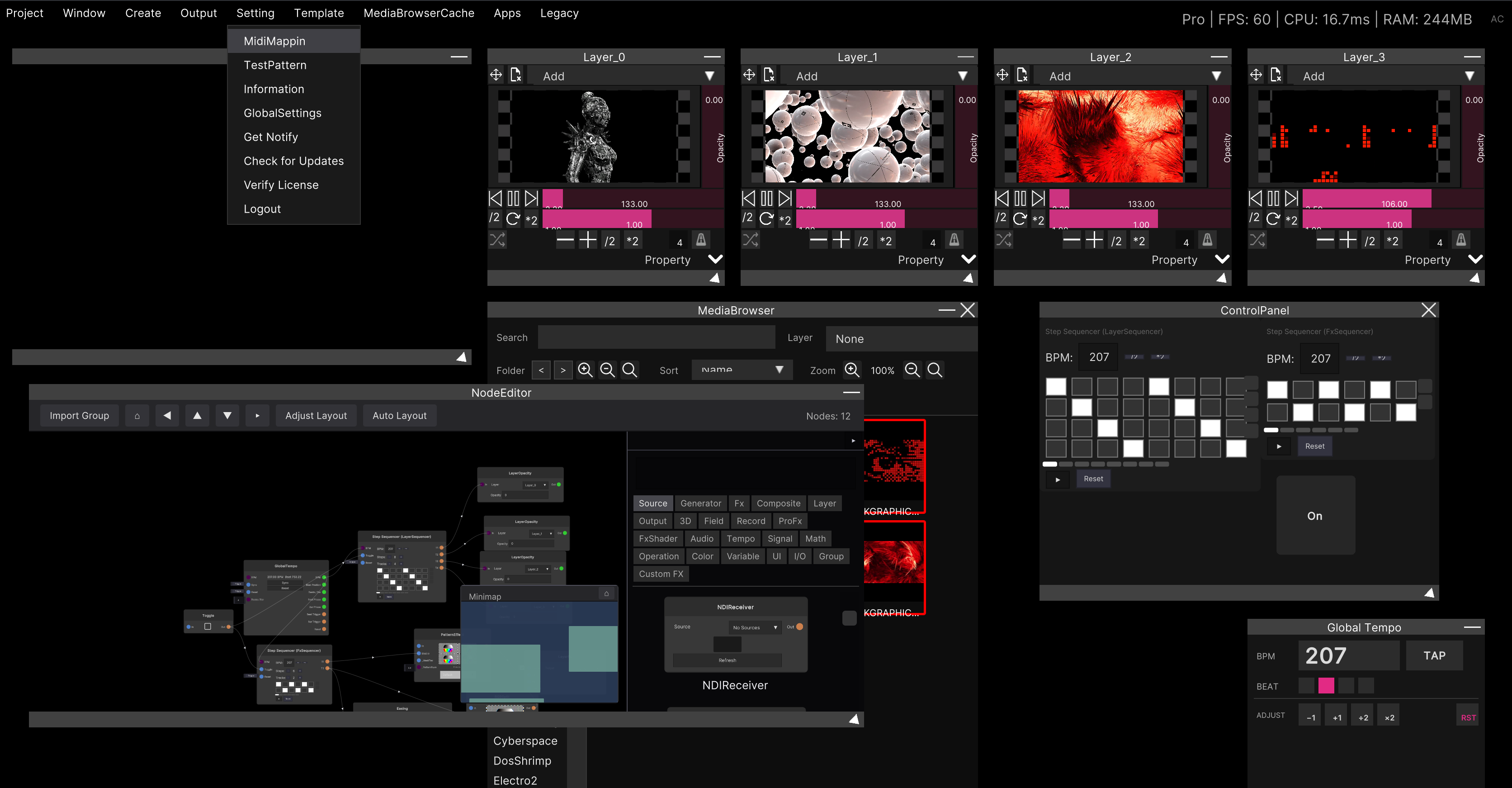
Setting → GlobalSettings → OSC in the menu bar.
| Item | Content | Default |
|---|---|---|
| OSC Input | Receiving on/off | OFF |
| Input Port | The receive port | 3170 |
| OSC Output | Sending on/off | OFF |
| (an unlabeled dropdown) | Switches between Localhost and Custom | Localhost |
| Output Address | The destination address (only shown when set to Custom) | 127.0.0.1 |
| Output Port | The send port | 3171 |
Both input and output are off in the initial state. When “I am sending but nothing happens”, first check whether OSC Input is on.
On the sending app, enter the IP address of the machine running SynapseRack and the value of Input Port.
Going back to
Localhostdoes not clear the destination address you entered. All that is hidden is the input field. When you want to send back to the local machine, leave it onCustomand re-enter127.0.0.1.
This setting is saved on the machine rather than in the project (the settings screen also says
Saved on this machine, not in the project file at the bottom).
Even when the network differs from venue to venue, carrying your .synapse around means the
settings of that machine are the ones used.
Checking that it is arriving
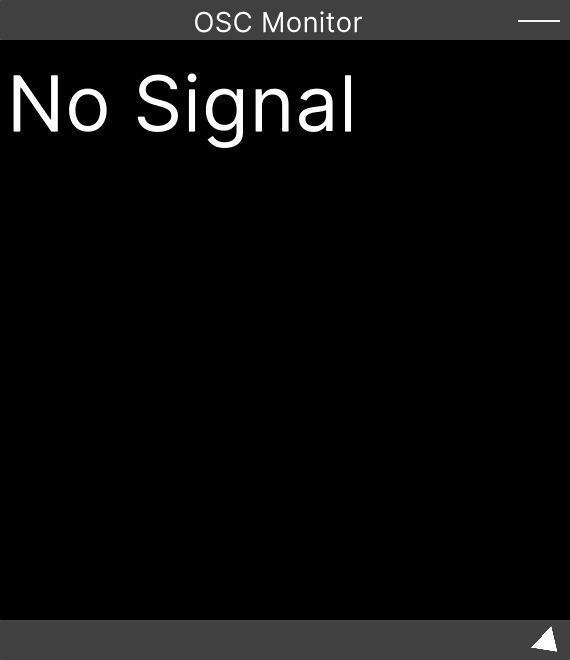
The messages received are listed as they are in the OSC Monitor. The address and the type can both be checked here, so this is the first place to look when something does not work.
Assigning to the UI on screen
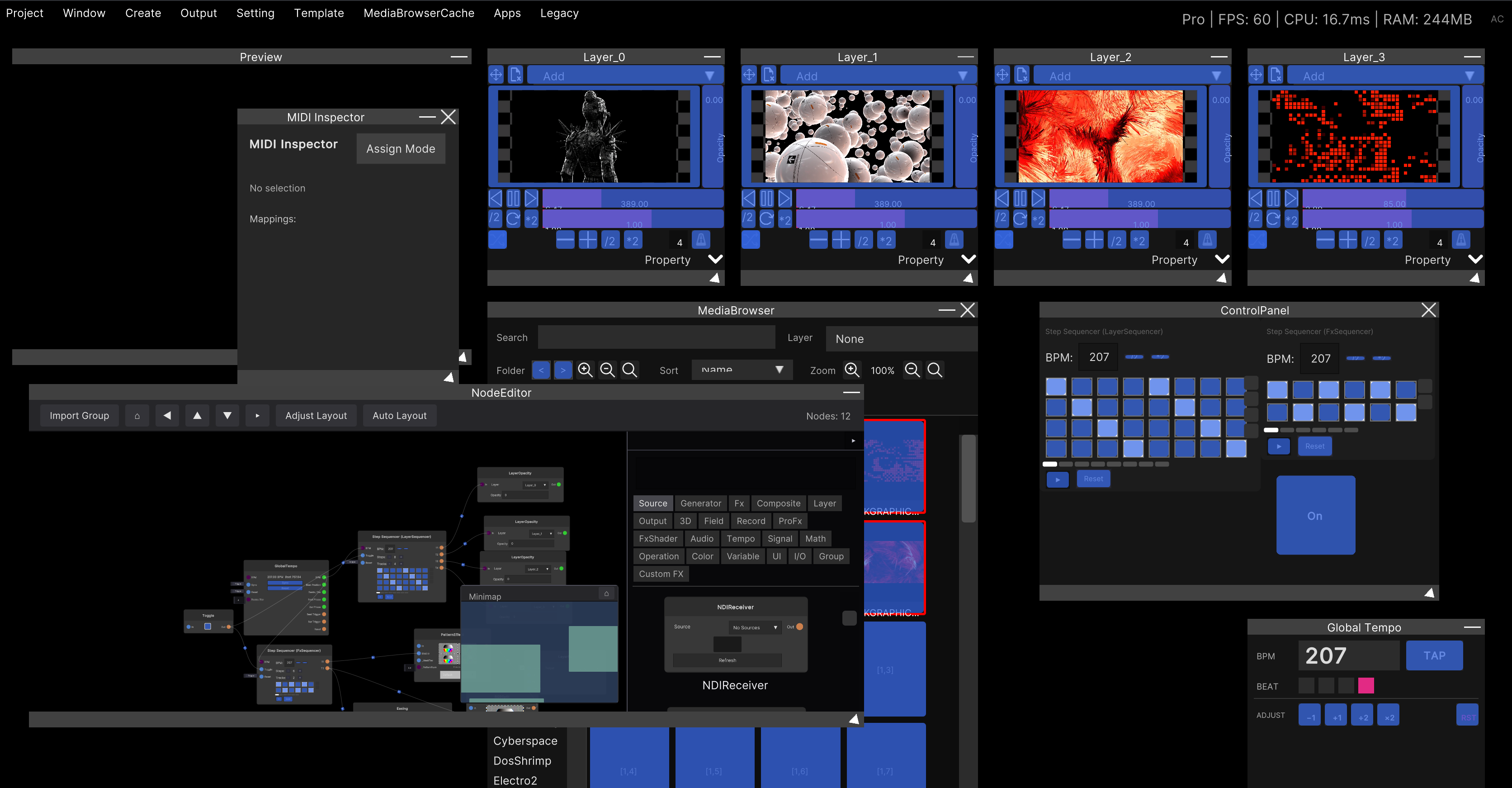
You assign inside the same assign mode as MIDI.
- Turn on OSC Input and actually send a signal from the sending side
- Enter assign mode with Setting → MidiMapping in the menu bar
- Click the UI you want to assign so that it turns red
- The addresses received are listed under
OSC sources (click to assign):in the MIDI Inspector - Click that line and it is assigned
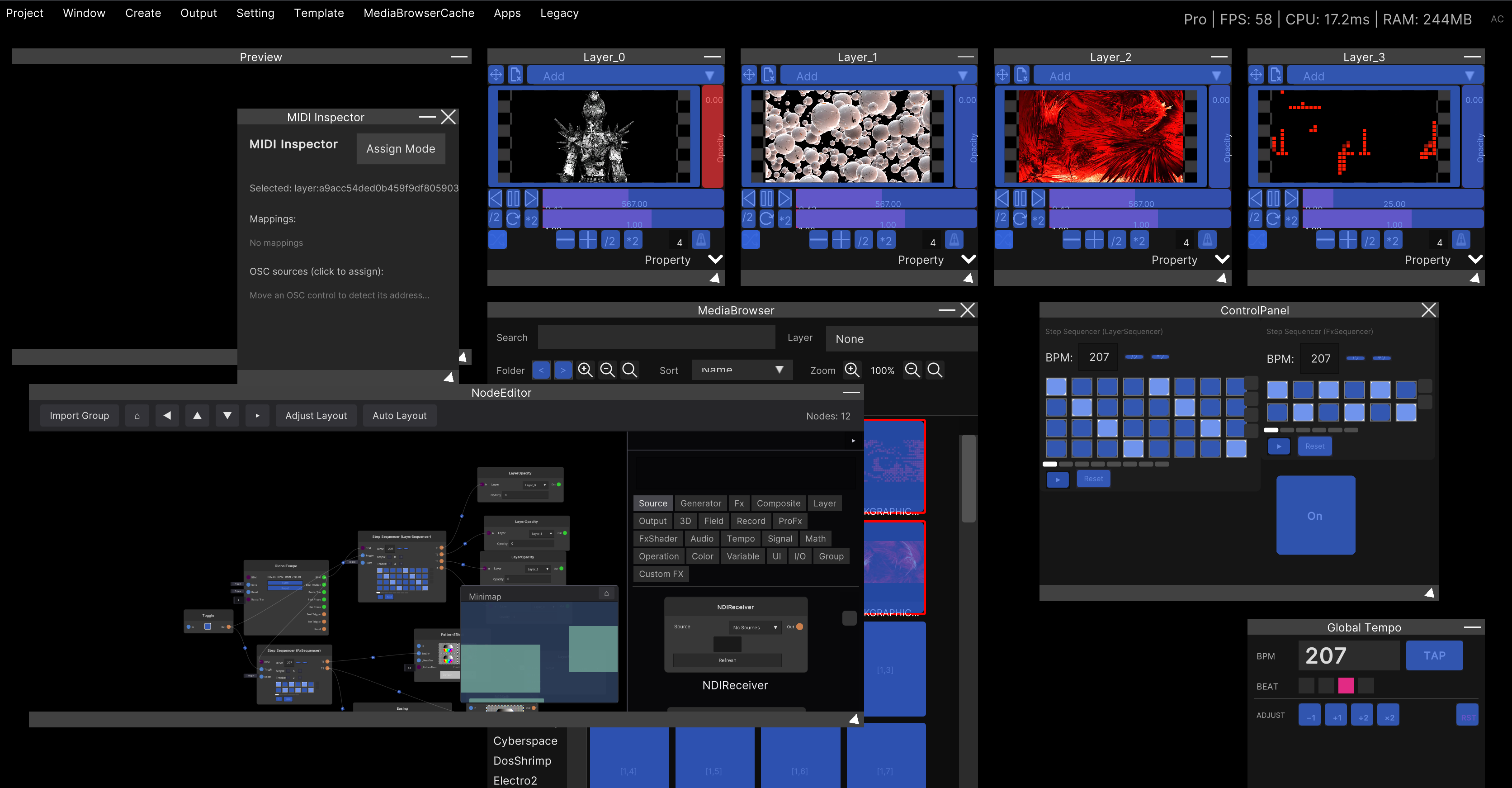
The format of a line is address [argument index] (current value).
When a single message contains several values, each value is listed as a separate line.
While nothing has been received yet, it shows Move an OSC control to detect its address....
The way to find one is to move a fader on the sending side so that its address appears.
OSC does not do “move it and it gets assigned automatically”. With MIDI, moving a knob binds it on the spot, but OSC can have large numbers of signals flowing constantly, so it uses a pick from the list approach.
The list resets every time you change the selection. Clicking a different UI element, or entering and leaving assign mode, empties it. If the address you want disappears, move the sending side again and it comes back.
Only arguments that can be read as numbers appear in the list. Floats, integers and booleans are picked up, but string and binary arguments do not become candidates. Up to 64 candidates accumulate.
To remove an assignment, use the × at the right end of a line under Mappings:.
See MIDI mapping for details.
How values act
The value sent is passed to the UI as it is. Send 0 to 1 and a slider moves accordingly, and buttons and toggles fire once the moment the value crosses 0.5 from below to above.
Wiring things with the OSC nodes
The I/O category of the Node Editor has four kinds each for input and output.
| Node | Role |
|---|---|
| OSCFloatInput | Outputs the float it received |
| OSCIntInput | Outputs the integer it received |
| OSCBoolInput | Outputs the boolean it received |
| OSCStringInput | Outputs the string it received |
| OSCFloatOutput | Sends a float |
| OSCIntOutput | Sends an integer |
| OSCBoolOutput | Sends a boolean |
| OSCStringOutput | Sends a string |
Every one of these nodes has a field for writing an address. The input side reads the first value of a message whose address matches exactly, and the output side sends when the input value changes (and when a Trigger arrives).
Messages whose type does not match are ignored, so when you think you are sending a float but an
integer is arriving, check type: in the OSC Monitor.
See the node reference for the detailed specification of each node.
Related
- OSC Monitor — checking the messages received
- MIDI mapping — the detailed explanation of assign mode
- Widget Panel — assigning OSC to a control screen you laid out yourself