Shortcuts
SynapseRack has a number of operations that do not appear in any menu or on any button. This page collects them in one place.
About the notation:
Ctrl/Cmd… Ctrl on Windows, Cmd on macOS. Both work the same wayCtrl… the Ctrl key on Windows and on macOS alike (reading it as Cmd on macOS will not work)
Common to all windows
The windows laid out inside SynapseRack (Preview / Node Editor / Layer / Media Browser and so on) are all handled the same way.
| Action | What it does | Notes |
|---|---|---|
F10 | Detaches the selected window as an independent OS window | To bring it back, close that window. Pressing F10 again does not bring it back |
Ctrl + F | Moves the selected window to the center of the screen | Ctrl, not Cmd, even on Mac. The implementation only looks at the left Ctrl; the right Ctrl does not work |
| Shift + drag the title bar | Moves snapped to a 20px grid | |
| Shift + drag the bottom right corner | Resizes snapped to a 20px grid | The minimum size is 100 × 100 |
| Double-click the title bar | Rename (only on windows that support it) | Enter to confirm, Esc to cancel |
“The selected window” is the window you clicked last. There is no mark on screen. The reliable way is to click the window you mean once, just before pressing
F10orCtrl + F.
The details of detaching (F10) are in Output to a projector.
Node Editor
These only work while the pointer is over the Node Editor.
| Key | What it does |
|---|---|
Delete | Delete the selected nodes and edges |
Ctrl/Cmd + C / V | Copy / paste (pasted 30px offset from the original position) |
Ctrl/Cmd + D | Duplicate |
Ctrl/Cmd + G | Group the selection |
Ctrl/Cmd + Shift + G | Ungroup |
Ctrl/Cmd + Z | Undo |
Ctrl/Cmd + Shift + Z / Ctrl/Cmd + Y | Redo |
Only these two work wherever you are, regardless of the pointer position.
| Key | What it does |
|---|---|
Ctrl/Cmd + A | Select all nodes. This covers every node, including the ones inside groups |
Esc | Deselect the nodes |
Ctrl/Cmd + Aworks even when you press it outside the Node Editor. What is more, what gets selected is not only the graph you are currently showing but every node, including the ones inside groups. PressingDeleteafter that erases all of them as long as the pointer is over the Node Editor, so be careful with the habit of “selecting all just in case” (Ctrl/Cmd + Zgets it back).
For the detailed behavior of Delete / Ctrl/Cmd + Z, see Node Editor.
The node creation popup (right-click the canvas)
| Key | What it does |
|---|---|
↑ / ↓ | Move through the items |
← / → | Move between the category side and the list side |
Enter | Confirm and create |
Esc | Close |
While the popup is open, anything you type goes into the search field (the search field is focused automatically right after it opens). During this time the wheel moves through the list instead of zooming.
Widget Panel
These only work while the pointer is over that panel and it is not frozen.
| Key | What it does |
|---|---|
Ctrl/Cmd + C / V | Copy / paste the selected widget (you can paste it into another panel too) |
Ctrl/Cmd + D | Duplicate |
Delete | Delete |
Ctrl/Cmd + Z | Undo |
Ctrl/Cmd + Shift + Z / Ctrl/Cmd + Y | Redo |
See Widget Panel for details.
Undo changes its target depending on where the pointer is
Ctrl/Cmd + Z is a single key, but what it undoes changes with the pointer position at the
moment you press it.
| Where the pointer is | What gets undone |
|---|---|
| Over the Node Editor | The node graph (creation, deletion, movement, connection, parameter changes) |
| Over a Widget Panel | That panel’s layout, bindings and appearance |
| Outside the Node Editor | The layer structure (the tree of the Layer Hierarchy) |
Over a Widget Panel, both the panel’s Undo and the layer structure’s Undo run. It is built so that “anything outside the Node Editor always includes the layer structure”, so hammering
Ctrl/Cmd + Zover a panel after reordering layers rolls the layers back as well.
None of them push “value operations” onto the history. Live operations such as moving a fader are the performance itself, so they are not subject to undo (only parameter changes in the Node Editor are recorded, as part of the graph’s history).
Output and external windows
This is the one place where the operations are on the OS side rather than SynapseRack shortcuts.
| OS | Action | What it does |
|---|---|---|
| Windows | Alt + Enter | Makes the output window fullscreen |
| macOS | The green button at the left of the title bar | The same |
| Windows | Alt + Space (or right-click the title bar) → Always on Top | Pins a detached window in front |
| macOS | The 📌 button at the right of the title bar | The same |
Always on Top applies to windows detached with F10. The state is saved together with the .synapse.
Other
| Situation | Key | What it does |
|---|---|---|
| Name and numeric input fields | Enter | Confirm |
| Name and numeric input fields | Esc | Cancel and return to the original value |
| While assigning in a Widget Panel | Esc (or right-click) | Abort the assignment |
| WebView nodes | F5 / Ctrl/Cmd + R | Reload the page |
While a WebView node has focus, keys are handed to the browser.
Ctrl/Cmd + C/V/Aand so on work inside the page, and SynapseRack’s shortcuts do not fire.
The feature for assigning a single keyboard key to a node or layer operation is a separate
thing. See Keyboard mapping for how to use it
(only single keys can be assigned; combinations with modifier keys such as Ctrl + 1 cannot be
registered).
Implicit mouse operations
Node Editor
| Action | What it does |
|---|---|
| Middle-button drag or Ctrl + left drag | Pan. Ctrl, not Cmd, even on Mac |
| Wheel | Zoom (0.05× to 30×, centered on the cursor position) |
| Shift + click a node | Add to the selection |
| Box-select and release while holding Ctrl | Add to the existing selection. Ctrl + left drag is panning, so it cannot be used to start a box selection |
| Right-click empty space | The node creation popup at that position |
| Right-click the body of a node | The same as above (nodes have no dedicated right-click menu) |
| Right-click a port | The port’s menu (Move all edges and so on) |
| Click the triangle in the middle of a line | Mute or unmute that connection |
| Double-click a node’s title | Rename the node |
| Left-drag inside the minimap | Move to that position |
Numeric input fields (node parameters in general)
This is the hardest operation to find.
| Action | What it does |
|---|---|
| Drag with the right button | Scrub the value (horizontally). The left button still edits on click as before |
| Shift + right-button drag | Fine adjustment at 1/10 of the resolution |
The amount of change scales with the current value (the larger the value, the more it moves, with a lower bound so that it still moves near 0). Scrubbing only starts once you have moved 2px or more, so the value does not change if you press and release immediately.
Right-clicking over a numeric field does not bring up the node creation menu. It yields to scrubbing. When you want the menu, right-click on empty space outside the node.
Media Browser
| Action | What it does |
|---|---|
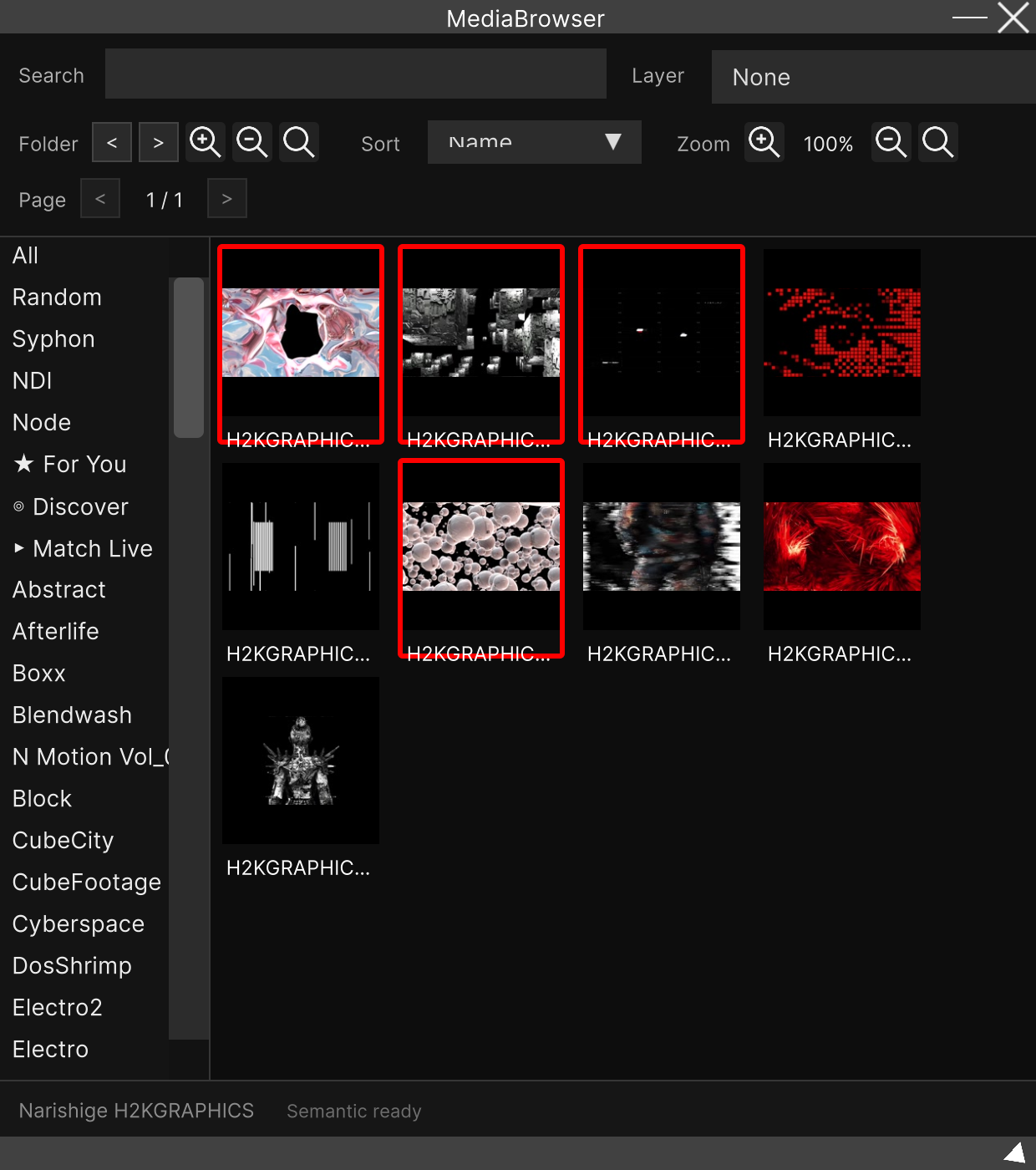
| Click a thumbnail | Select it and assign it to a layer at the same time |
| Ctrl/Cmd + click | Only toggles the selection (no assignment) |
| Shift + click | Range selection (no assignment) |
| Right-click a thumbnail | Context menu |
| Ctrl + right-click | Rebuilds just that thumbnail without bringing up the menu. Ctrl, not Cmd, even on Mac |
| Drop onto a folder while holding Alt (Option) | Moves instead of copying |
See Media Browser for details.
Layer
| Action | What it does |
|---|---|
| Right-click the preview area of a Layer | In the Media Browser you touched most recently, opens and selects the folder of the clip that layer is currently using (only when a Media Browser is open and that layer has a clip in it) |
| Click the waveform of a Waveform | Seek to the position you clicked |
| Left-click a Waveform hot cue (A to H) | Sets the current position if it is unset, jumps there if it is already set |
| Right-click a hot cue | Clears that cue |
When nothing happens
Shortcuts do not fire while you are entering text. While you are editing a node name, a layer name or a numeric field,
Ctrl/Cmd + Zand everything else is handed to the input field. Finish the input withEnterorEscfirst, then press.
Most shortcuts decide their target from the pointer position. When “it won’t delete”, “it won’t paste” or “Undo undid something else”, the pointer is usually over a different window. The exceptions are
Ctrl/Cmd + AandEsc(which act on the Node Editor’s selection from anywhere), andF10andCtrl + F(which target the window you clicked last).
There is no shortcut for saving a project.
Ctrl/Cmd + Sis not assigned. Save from the menu bar.
Related
- Node Editor — the whole picture of working with nodes
- Widget Panel — the panel’s own shortcuts and Freeze
- Output to a projector — detaching with
F10and the output window - Keyboard mapping — assigning keys for performance