Crossfade loop
A feature that hides the abrupt “snap” as a loop comes round. It overlaps the end and the start of the clip, covering the switch with continuous video.
Even material that was not made to loop can be run as it is in a VJ set.
Usage
This is the toggle at the left end of the bottom row of the Layer window.
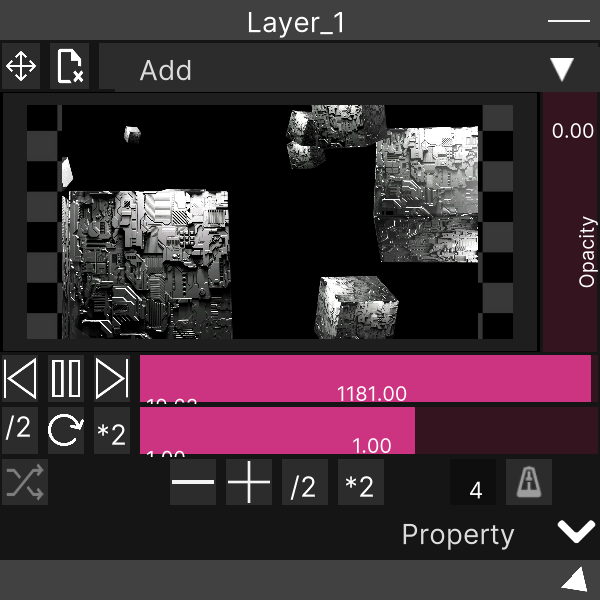
Just press it while the video is playing, and from then on that clip’s loop is smooth. This toggle is the only setting; there are no parameters for adjusting how or how long it overlaps.
The overlap is fixed at “10% of the clip length”
For a 10-second clip, 1 second at each end overlaps. For 20 seconds it is 2 seconds. It gradually changes over during the last 10% and gradually comes back over the first 10% after it wraps, giving an arc-shaped movement.
The shorter the clip, the shorter the overlap. Since it is decided as a proportion, a 1-second loop only overlaps for 0.1 seconds. When it “looks like it is not working”, suspect the length of the material first.
It follows changes in playback speed
The overlapping copy simply follows the playback speed of the main video. Whether the speed is being adjusted automatically by Beat Sync or you doubled or halved it with the speed buttons, the way the seam is hidden does not change.
Note that the audio of the overlapping copy is always silent. It never plays twice.
It only works on video
The toggle only does something when the layer is playing video. On layers holding an image, Spout / Syphon, NDI or the output of a node, pressing it does nothing (there is no such thing as a loop seam there in the first place).
The on/off state is remembered per clip
The state of this toggle is recorded in the library per clip. A clip you have turned it on for starts with it on the next time you call it up, and on any other layer you put it on. Think of it as a setting on the material rather than on the layer.
The number of beats for Beat Sync is likewise recorded per clip (the default is 4 beats).
If you turned it on and it does not work, call the clip up again. Pressing the toggle before the video has finished loading can leave the overlapping copy unprepared. Assign that clip once more from the Media Browser and it is rebuilt with the recorded on state intact.
MIDI
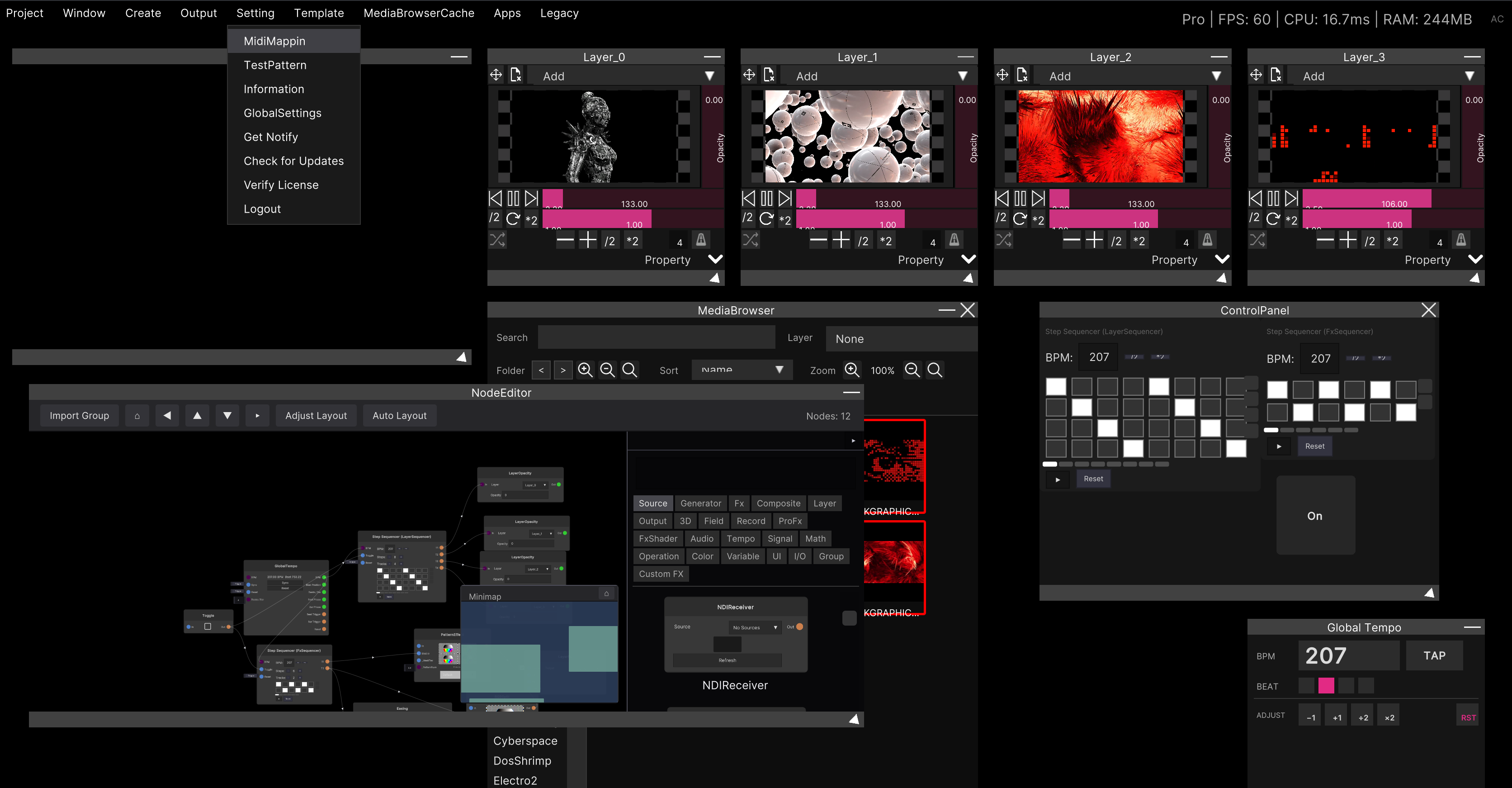
This toggle can be assigned to MIDI. The procedure is the same as MIDI mapping: enter assign mode from Setting → MidiMapping in the menu bar.
Video
With the crossfade loop on
With the crossfade loop off
Related
- Layer — where the toggle lives, and the other playback controls
- Syncing to the beat — the Beat Sync in the same row
- Loading video and image files — importing material and the supported codecs