Apps SDK (Plugin Development)
A framework that lets you build your own tools with HTML and JavaScript that run inside SynapseRack. An app opens as a SynapseRack window, and from there it can create nodes, connect them, and operate parameters, control Layers, and output video (MediaOut / Spout / Syphon).
There is no build step. Put an index.html in a folder, and it is reloaded automatically when you save.
And the app template ships with the API reference for AI agents included as-is.
It is designed around the idea of handing the whole folder to an AI and asking it for help.
What an app is
One app = one folder. If it contains the following two files, it is an app.
| File | Role |
|---|---|
synapse-app.json | The manifest. id / name / version / entry / apiVersion / capabilities / multiInstance |
index.html (= entry) | The entry point. JS loaded from here controls SynapseRack through window.synapse |
You can change the name of the entry file by rewriting entry (the default is index.html).
Where apps live
Installed apps live in the Apps folder under the same root as the Source Directory.
<Source Directoryの親パス>/SainaWorks/SynapseRack/Apps/By default this is C:/SainaWorks/SynapseRack/Apps on Windows and ~/SainaWorks/SynapseRack/Apps on macOS
(the parent path is changed in the same Settings.json as in Specifying the path for loading VJ clips (Source Directory)).
Only the immediate children of this folder are looked at. Among the folders directly under
Apps, those that have asynapse-app.jsonappear in the library. They are scanned at startup and when you open AppHub, and folder additions, deletions and renames are watched as well, so dropping in an app folder makes it show up in the list right away (much like dropping an Ableton .ablx in).
Installing an app someone distributed is also just a matter of copying the whole folder into this folder.
Getting started
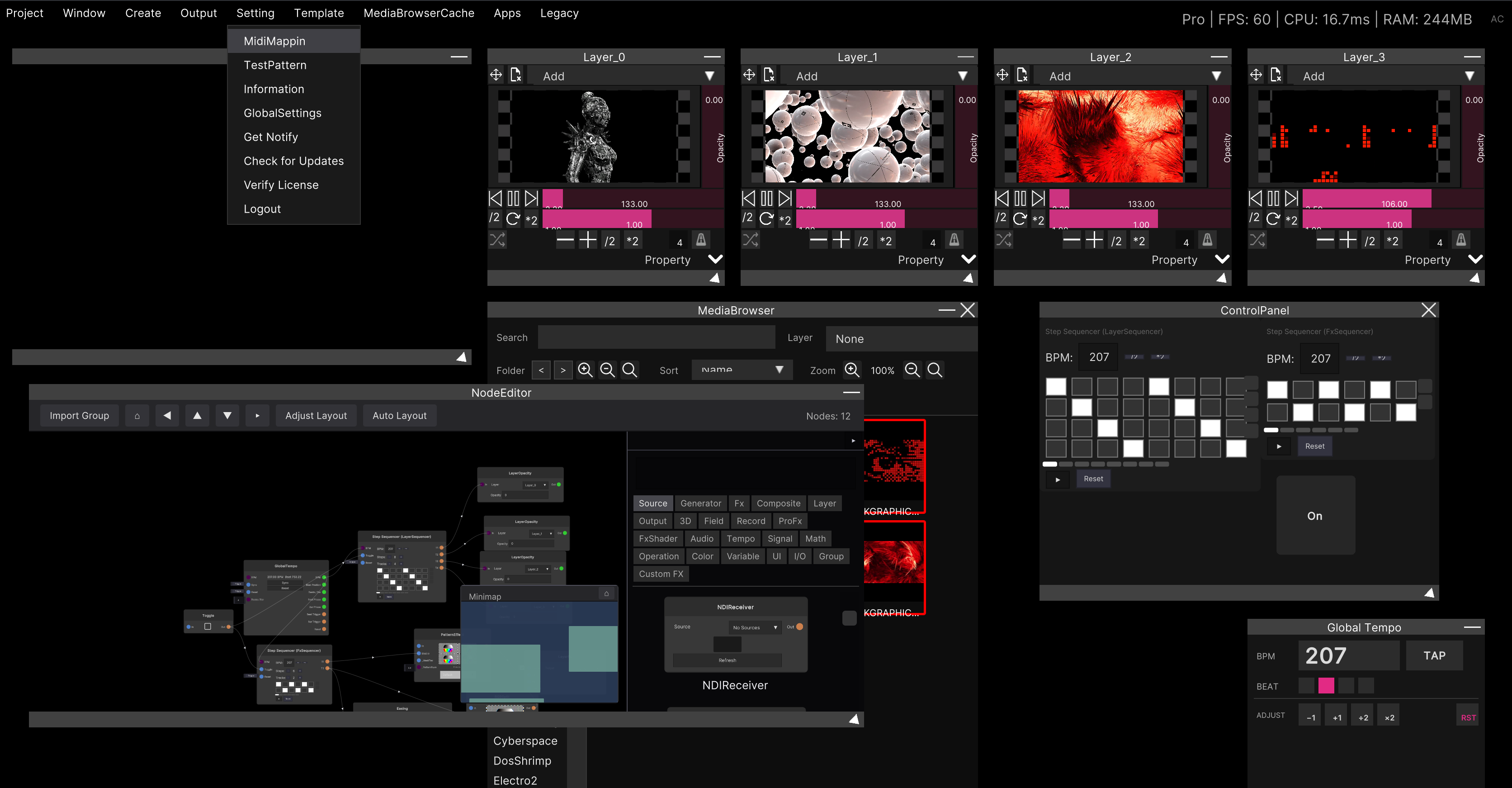
The Apps menu
The Apps menu in the menu bar lists the following.
| Item | What it does |
|---|---|
| App Hub… | Opens the AppHub window |
| (list of app names) | Click to launch. Apps that are already running are prefixed with ●, and clicking one brings its window to the front |
| Open Apps Folder | Opens the Apps folder described above in the OS file browser |
AppHub
All app management happens in this window. The toolbar at the top has three buttons.
| Button | What it does |
|---|---|
| New | Opens a name field. Create makes a new app inside the Apps folder. Choosing Elsewhere… lets you specify the location yourself |
| Add | Registers an existing folder as an app (it may be outside the Apps folder; it gets a dev tag and persists across restarts) |
| Folder | Opens the Apps folder in the OS file browser |
Below the name field, where the app will be created is always shown.
The created folder name is derived from the name you typed (unusable characters are replaced with -), and if a folder of the same name exists, a date and time is appended.
Each app row has a status dot at the far left (green = running / yellow = starting or reloading / red = failed / gray = stopped), the name, and an Open button.
Pressing ⋯ opens the secondary actions.
| Item | What it does |
|---|---|
| Stop / Reload | Stop / reload |
| Console | Opens a console window dedicated to that app |
| Folder | Opens that app’s folder in the OS file browser |
| Info | The manifest contents (id / name / version / apiVersion plus the host’s version / capabilities) and, if it is running, a breakdown of owned resources and diagnostics |
| Reveal | Dives into the hidden node graph the app holds internally (use the Node Editor’s Back to get out) |
| Unlink | Only appears for entries registered with Add. The folder is not deleted. It is only removed from the list |
| Hot Reload | Whether to auto-reload on file changes (ON by default. It is a per-instance setting and returns to the default when you Stop) |
What a new app contains, and how to work on it with an AI
A folder created with New receives the following 10 files in addition to synapse-app.json.
| File | Contents |
|---|---|
index.html / main.js / style.css | A working template. It already draws a color in a web window, sends it to MediaOut, and grows one Hue control |
synapse-sdk.js | A convenience layer (window.SynapseSDK). You can write apps without it |
synapse.d.ts | Type definitions for the whole API |
SYNAPSE_API.md | The full API reference |
NODE_CATALOG.md | A list of every node’s id, ports, and settable members |
SHADER_EFFECTS.md | An explanation of shader effects (the Preview feature) |
SAMPLES.md | A guide to the official sample app collection |
DESIGN.md | UI conventions for looking like you are inside SynapseRack |
This bundled set of files is, as-is, the input for an AI agent.
SYNAPSE_API.mdis a document for AI, whose opening explicitly states that it is written so that an AI assistant that has read only this file can write a workingindex.htmlin one shot. Open the folder with Folder in AppHub, hand that folder to an agent such as Claude Code or ChatGPT, and ask it to “readSYNAPSE_API.mdandNODE_CATALOG.mdin this folder and make an app that does X” — that is the standard way to proceed.
The official sample apps (an A/B deck mixer, a background looper, a control surface, a MIDI gallery, and so on) are
in samples/ of SynapseRack-Apps-SDK.
They run as soon as you copy the whole folder, so when you want to imitate a pattern, having these read is the quickest route.
API overview
Every call takes the form window.synapse.<group>.<method>() and returns a Promise.
If you load synapse-sdk.js, you can write the same thing more briefly through handle objects.
1. Connect and signal “ready”
const app = await SynapseSDK.connect();   // window.synapse を待って ping する
// ...ここでアプリが使うものを全部作る...
await app.ready();                        // 作り終えたら1回だけ呼ぶ
app.ready() is required. On reload, the resources created last time are kept alive in an “not yet claimed” state,
and are cleaned up only after the new boot() recreates them with the same id, or ready() arrives, or a timeout expires.
This is what makes “edit and save → things are recreated, but the wiring the user drew is not broken” work.
2. Create nodes, write values, connect them
Pass the id listed in the table of NODE_CATALOG.md directly as type.
// 作る(返り値の id がそのノードのmoduleId)
const lfo   = await synapse.modules.create({ type: 'LFO' });
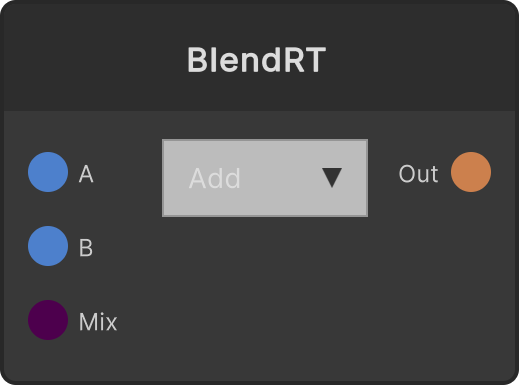
const blend = await synapse.modules.create({ type: 'BlendRT' });

// 設定可能メンバに値を書く(パスはカタログの settable 列の名前。ドット区切り不可)
await synapse.modules.set(blend.id, 'mixInput', 0.5);

// つなぐ(位置引数。ポート名はカタログの in/out の id。省略時は 'Out' / 'In')
await synapse.modules.connect(lfo.id, 'Value', blend.id, 'Mix');
You can query the same catalog at runtime: const types = await synapse.modules.types();
modules.createis not “call it again with the same id and get the same thing”. Call it twice and you get two nodes. If you want it to be idempotent, remember the returnedmoduleIdyourself, or use therender/web/output/layersside described below (passing anidmakes it get-or-create).
3. Work with Layers / take a Layer’s image out as a texture
const selected = await synapse.layers.selected();
await synapse.layers.setOpacity(selected.id, 0.5);

// そのLayerの出力を textureId として取り出す(id を渡すのでリロードしても同じもの)
const deckA = await synapse.layers.createTextureSource(selected.id, { id: 'deck-a' });
textureId is the common currency for video. A Layer’s output, a web window’s rendered result, and a mixer’s result are all represented by the same kind of string,
and can be passed as-is to a mixer input, to output.publish, or to an in-app preview.
3b. Switching the “target Layer” for Layer nodes (v3.2.0+)
Layer nodes such as LayerOpacity and LayerSpeed can receive which Layer they act on through a Layer input port.
From an app, the standard way is to create a LayerSelect node and wire it in.
const select  = await synapse.modules.create({ type: 'LayerSelect' });
const opacity = await synapse.modules.create({ type: 'LayerOpacity' });

// Wire LayerSelect's Layer output into the Layer input of the node whose target you want to switch
await synapse.modules.connect(select.id, 'Layer', opacity.id, 'Layer');

// Choose by a 0-based index (can also be driven by the Prev / Next triggers)
await synapse.modules.set(select.id, 'indexInput', 1);
To specify by the Layer’s id (the id from layers.list()), route it through a string node.
const ref = await synapse.modules.create({ type: 'string' });
await synapse.modules.set(ref.id, 'currentValue', layer.id);   // the id from layers.list()
await synapse.modules.connect(ref.id, 'Out', opacity.id, 'Layer');
Wiring one LayerSelect into multiple nodes’ Layer inputs switches all of them together.
selectedLayerIndexcan no longer be written viamodules.setas of v3.2.0. Decide the target of a Layer node by wiring its Layer input port, as shown above (direct index assignment was removed because reordering changes what an index means). While a Layer input is connected, changes from that node’s own dropdown or widget are ignored, and the wiring takes priority.
4. Expose your own image as a video source in SynapseRack
const canvas = await app.webWindow('canvas', {
  title: 'Canvas',
  html: '<canvas id="c"></canvas><script>/* requestAnimationFrame で描く */</script>',
  width: 960, height: 540
});

await app.publishMedia('main-out', { source: canvas, name: 'My Output' });
publishMedia (= output.publish) creates a MediaOut node.
If you pass a stable id, the same node is reused when you reload the app or reopen the project,
and the wiring the user drew from it is reconnected as well.
5. Leave continuous change to the host
const mixer = await app.mixer('mix', { type: 'crossfade', inputs: [deckA, canvas], value: 0.5 });

const fader = await app.control('fade', { label: 'Fade', min: 0, max: 1, value: 0.5, midi: true });
fader.onChange((v) => mixer.value.set(v));

await mixer.value.lfo({ rate: '1', shape: 'sine', min: 0, max: 1 });   // 1小節で1周
await mixer.value.follow({ source: 'audio.bass', min: 0, max: 1, smooth: 0.5 });
rate is a musical division in bars ('1/4' '1/2' '1' '2' '4'; { hz: n } for free-run),
shape is sine / triangle / saw / square, and source for follow is one of
audio.level / audio.bass / audio.mid / audio.high.
If you add midi: true to controls.register (app.control in the SDK) and tie the corresponding DOM element to it with
data-synapse-control="<id>" or anchor, then in SynapseRack’s MIDI learn mode,
the UI on your own page becomes a learn target as-is. You do not need to build your own dedicated “MIDI listening” button.
Finding node ids and port names
modules.create / modules.connect require the exact id and port id. There are four ways to look them up.
| Method | When to use |
|---|---|
NODE_CATALOG.md in the app folder | Works entirely offline. A list meant to be read by an AI (id / title / inputs / outputs / settable) |
await synapse.modules.types() | Gets the same content at runtime. Always matches what your own version actually has |
Node reference (/en/docs/nodes/) | For humans to read. Port tables and explanations |
https://synapserack.com/mcp / https://synapserack.com/llms-full.txt | For AI agents. Connect it as an MCP server, or have the whole text read at once |
The MCP server provides search_docs / get_doc / list_nodes / get_node,
so the documentation and the node reference can be queried directly.
Running, reloading, debugging
Hot reload
Saving a .html / .js / .css / .json file is all it takes — the running app auto-reloads in about one second (node_modules and .git are excluded). Whether you use VS Code or an AI coding tool, you do not have to think about how you save.
To stop it, turn Hot Reload OFF in AppHub (it applies only for that instance).
Console
The app’s console.log and errors, the bridge’s logs, and hot reload notifications all gather in a single console. There are two places to view it.
- The “Console” button at the bottom of the app window — opens and closes in place
⋯→ Console in AppHub — a separate window (it stays open even after you stop the app, showing “App stopped.”)
Both have Copy, which puts the visible log on the clipboard as-is (it exists so you can paste it to an AI). Clear only clears the display; the internal buffer remains. The app window additionally has a Debug toggle; turning it ON makes the bridge traffic itself flow into the log too.
Errors are structured. A failed call throws an Error, and err.synapse contains
{ code, message, method, hint } (code is unknown_method / invalid_params / not_found / internal).
When you ask about the cause, handing over these contents is the shortest path.
MCP server (development tool)
Open Developer at the very bottom of AppHub and you will find an MCP Server toggle and a port field.
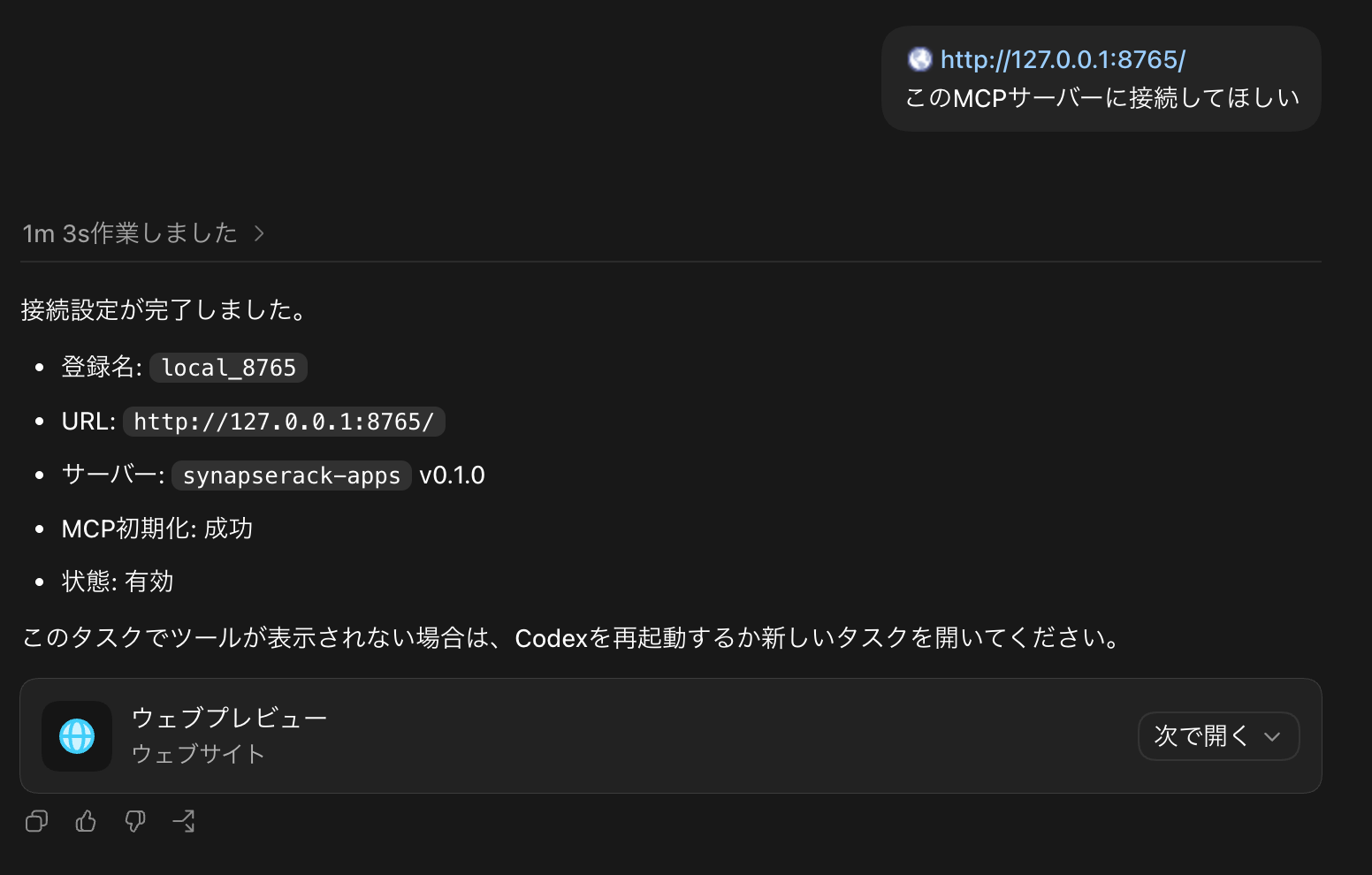
Turn it ON and an MCP server starts at http://127.0.0.1:8765/ (the default port),
letting an AI coding assistant perform the following operations directly against the running SynapseRack.
| Tool | Description |
|---|---|
list_apps | A list of running app instances |
invoke | Calls any method in the documentation against a running app |
read_console | Reads that app’s console (can be filtered by severity) |
reload_app | Reload |
graph_state / graph_node_types / graph_create_node / graph_delete_node / graph_connect / graph_disconnect | Read and edit the node graph the user sees |
You can run the loop “edit → reload_app → check errors with read_console → verify the result with invoke”,
so you no longer have to keep visually checking the code you had the AI write.
For security, it is OFF by default. It returns to OFF on every launch. It binds only to loopback (127.0.0.1), but there is no authentication. Only the port number is saved for next time; the enabled/disabled state is not (the design is that opening it should be an explicit choice each time). Turn it OFF when you are done, and do not expose it externally through port forwarding or the like.
How it is saved
Apps are saved together with the project (.synapse). When you reopen the project,
SynapseRack automatically relaunches the app from its folder (much the same feel as a Max for Live device being saved with the set).
Three mechanisms are involved in saving.
| Mechanism | What persists |
|---|---|
app.setState(obj) / app.onRestore(fn) | The app’s UI state. Saved together with the project and handed back right after app.ready() |
A stable id for things like output.publish | The identity of the output node. It is restored along with the wiring the user drew from it |
synapse.storage (get/set/delete/list) | A per-app storage area that is independent of the project. For presets, caches, and last-used settings |
Limitations and caveats (from the implementation)
Do not write values from JS every frame. Spinning
setValueinrequestAnimationFrameis exactly the round-trip cost this design is trying to avoid. Leave continuous modulation to the host-side bindings (.value.lfo()/.value.follow()/.value.bindMidi()), and send only discrete events such as slider and button operations from JS.
The low-level App nodes do not appear in the add-node UI by default.* The five types
AppMediaPlayer/AppTextureSource/AppOffscreenLayer/AppStackMixer/AppFxChainare hidden from the right-click add-node menu and from the side panel (for non-developers they would only clutter the list). If you want them shown, turn GlobalSettings → Library → App SDK Modules → Show App SDK modules ON. This setting is not saved with the project. The app-sidemodules.create/render.*/modules.types()are not affected by this setting at all (apps can create them even when the setting is OFF).AppTextRender(Text Render) is excluded from this and is always shown as a normal node in the Generator category.
Windows cannot talk to each other directly. The main window and a child window opened with
web.createWindoweach have their own independent bridge. Ids of imported assets and registered controls cannot be referenced across windows. Pass values you want to share throughsynapse.storage(textureIdand keyed resources are common to the whole instance, so they can be passed as-is).
controls.registeralone is not a strict get-or-create. Registering again with the sameidoverwrites the previous control’s metadata (this is not a problem whenboot()re-runs).
The only mixer is
crossfade(two inputs).render.createSessionis an empty implementation kept for compatibility, so do not call it in new code.
Offscreen players are muted by default. Producing sound is an explicit opt-in, and only the standard Unity video playback backend can handle audio in the first place.
The SDK is not required.
synapse-sdk.jsis a thin layer that only reduces boilerplate, and everything it can do can be called directly fromwindow.synapse.
Multiple instances (multiInstance)
By default only one instance of an app runs (launching it a second time just brings the window to the front).
Add "multiInstance": true to synapse-app.json and you can run many copies of the same app side by side,
with the AppHub row turning into “New Slot” plus one row per slot.
What is independent per slot: the internal graph, published outputs ( (2) is appended to the display name), the MIDI scope,
the windows, and app.setState / app.onRestore. Only synapse.storage is shared across all slots.
You can find out which slot you are from slot in app.ping() (this is meant for usages such as launching one instance per Layer).
Related
- Node reference — the list of ids and port names to pass to
modules.create - MIDI mapping — app controls are also targets of this learn mode
- Specifying the path for loading VJ clips (Source Directory) — the setting that determines where the
Appsfolder is