Output to OBS
For as long as it is running, SynapseRack broadcasts its master output within the same PC. Install a receiving plugin on the OBS side and select the source, and that is all it takes.
| OS | Standard used | Source name |
|---|---|---|
| Windows | Spout | SynapseRackMain |
| macOS | Syphon | SynapseRackMain |
The send name is fixed at
SynapseRackMain. There is no setting in the app to change the name, and none to stop the sending. It is always out there, so all you do is select it on the OBS side.
What to do on the SynapseRack side
Nothing. The master output is flowing from the moment the app is running.
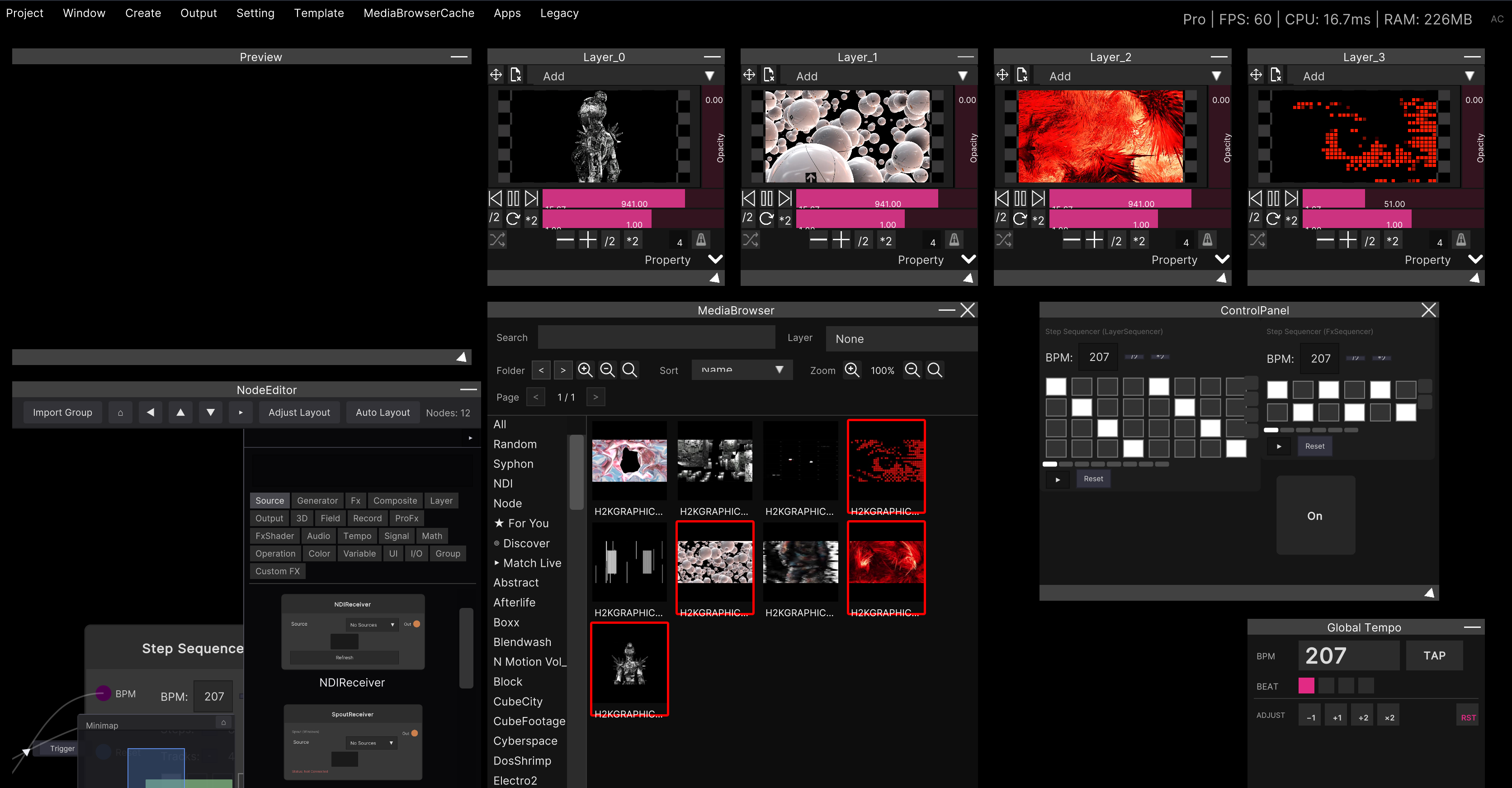
What you see is the same picture as in the Preview. Only the composited program video is sent, so the menu bar, the node editor, the MediaBrowser and other control screens do not appear in it.
The output resolution is decided by Resolution under Setting → GlobalSettings → Output
(default 1920 × 1080).
Matching your OBS canvas size to it avoids unnecessary scaling.
There is no alpha (transparency). The master output is sent as an opaque picture. If you want to key the background and composite it in OBS, use chroma key or the like on the OBS side rather than the SpoutSender node described below.
Setting up OBS
OBS cannot receive Spout / Syphon out of the box, so you install a plugin.
Windows
- Install an OBS plugin for Spout (for example obs-spout2-plugin)
- Restart OBS
- Add Spout2 Capture from the + for sources
- Choose
SynapseRackMainfrom theSpout Senderlist in the properties
macOS
- Install an OBS plugin for Syphon (for example obs-syphon)
- Restart OBS
- Add Syphon Client from the + for sources
- Choose
SynapseRackMainfrom the server list
The procedure and plugins on the OBS side are outside SynapseRack’s remit. Menu names change with the version of OBS and of the plugin. The essential point is only to “get into a state where you can receive Spout / Syphon and select
SynapseRackMain”.
When you want to send a different picture under a different name
Separately from the master output, you can also send a picture from partway through the graph.
Place a SpoutSender node in the Node Editor and connect the
video you want to send to In.
- The
Namefield on the node becomes the source name that appears in OBS as it is (the default isOutputName) - On macOS the node is displayed as
SyphonSender. It is the same node inside, and project files are common to both OSes - Rewrite the name and the source on the OBS side disappears once and comes back under the new name
When you place several SpoutSender nodes, always give them different names. Sending two streams under the same name collides at the OS level. The app does not stop duplicates for you. Since the default is
OutputNamefor all of them, the safe habit is to change the name as soon as you place one.
Leaving
Nameempty sends nothing. You can check the sending state from theSending: namedisplay on the node.
If your streaming PC and your VJ PC are separate machines, use the NDISender node rather than Spout. It reaches across the network.
Conversely, when you want to bring video from OBS or other software in
SynapseRack can receive Spout / Syphon as well. See Receiving and sending Spout.
SynapseRackMaindoes not appear in the list. Receiving your own output would loop the video, so it is always excluded from the candidates on SynapseRack’s receiving side.
Related
- Receiving and sending Spout — the receiving side
- Output to a projector — the output window, NDI and resolution settings
- Output nodes — the reference for SpoutSender / NDISender