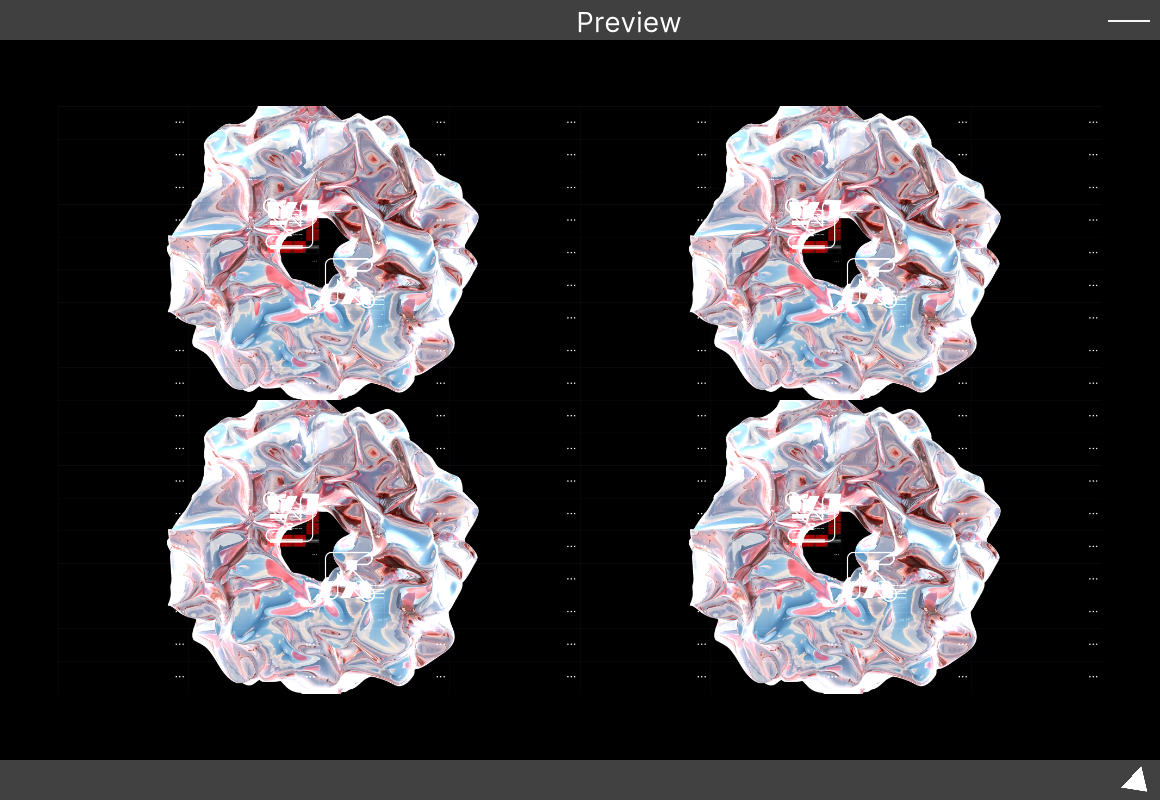
SynapseMapper (projection mapping)
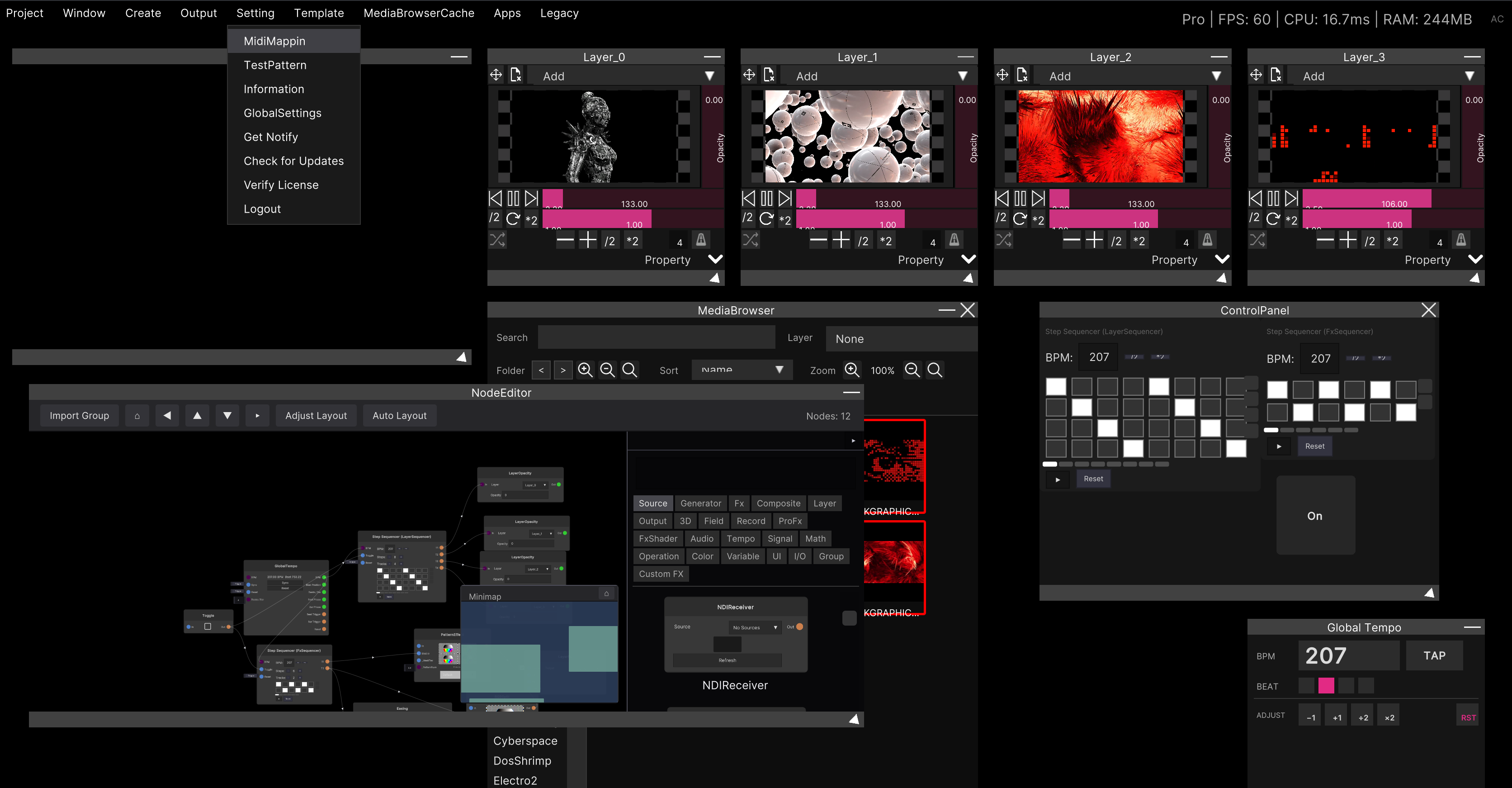
The window for projection mapping. Open it from Window → SynapseMapper in the menu bar.
You place pictures as quads. Each quad says which part of which source goes where in the output space and in what shape, and the quads composite together into one mapping output. The mapping output is a separate picture from the master output, and it goes fullscreen to a display from the Output menu.
Making a quad
Add one with + Quad in the toolbar. Selecting a quad shows its settings in the inspector on the right.
| Item | What it is |
|---|---|
| Name | The quad’s name |
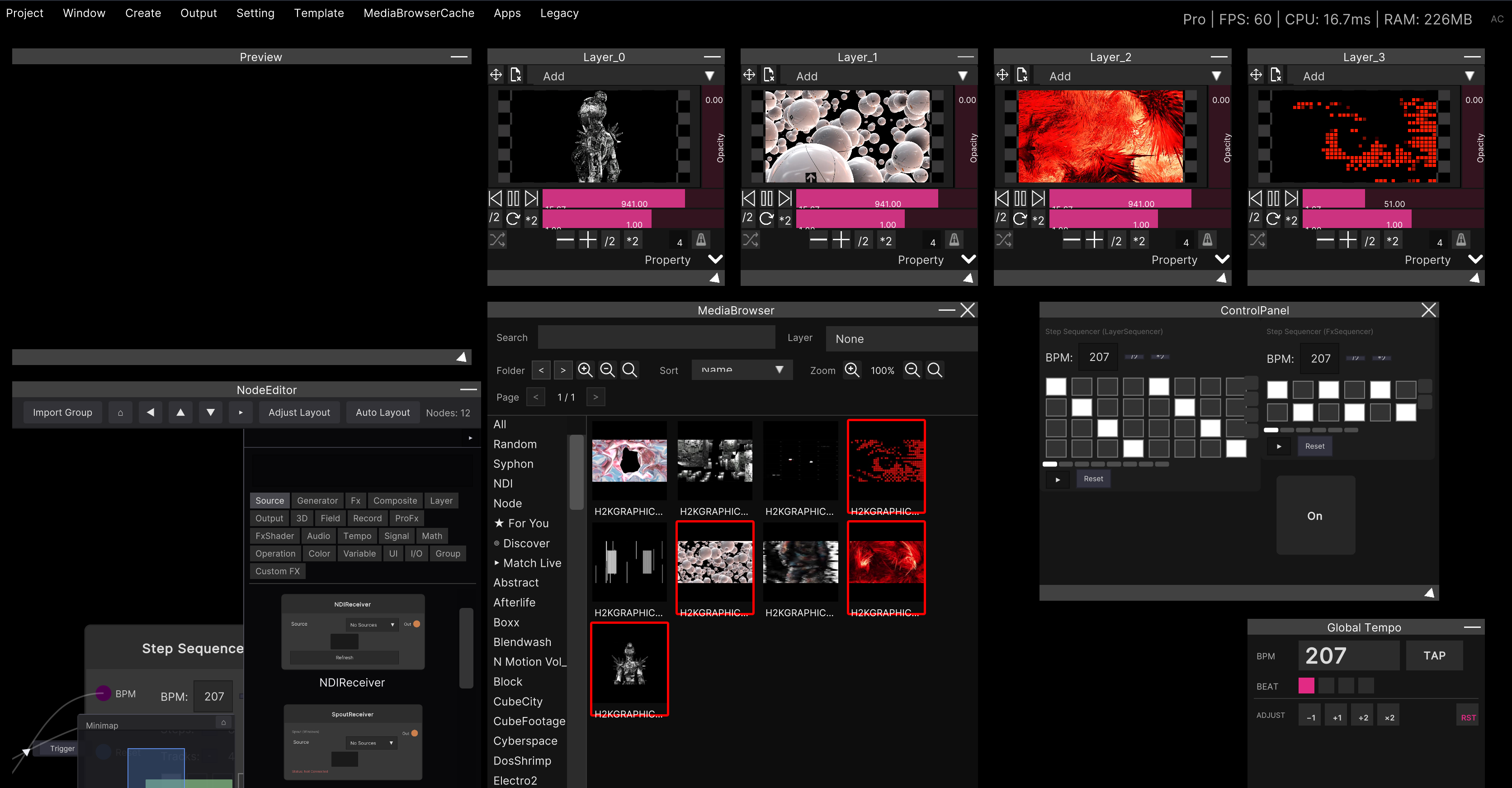
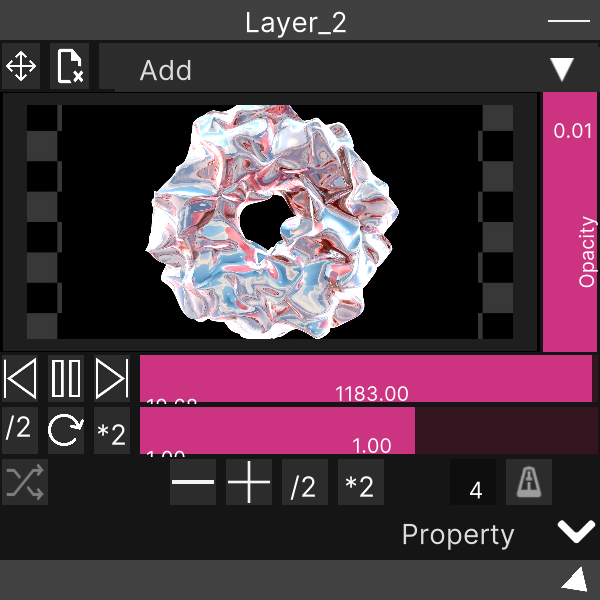
| Source | The picture to place: Master (every layer composited = the master output) or an individual layer |
| Source Rect | Which part of the source to use. Drag a rectangle in the Input view |
| Corners (TL/TR/BL/BR) | The four corner positions in output space. Move them numerically or by dragging in the Output view |
| Perspective | When on, the corner-pin deformation is interpolated with perspective correction (on by default) |
| Blend / Opacity | Blend mode and opacity where quads overlap |
| Test Pattern | While on, an alignment grid fills the quad instead of the source (nothing in your setup is touched) |
The two views
- Input — pick the region of the source to use (Source Rect)
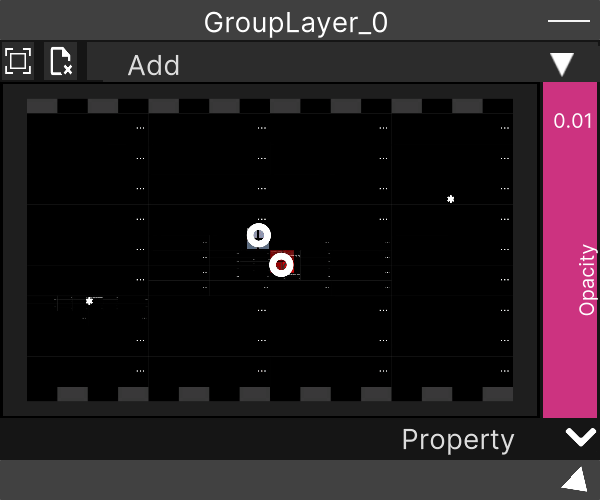
- Output — arrange quads in the mapping output space. Corners and warp points are dragged directly
The Output view zooms and pans for an overview, and quad moves and point edits snap. A frame showing the master resolution is drawn too, so you can see where things extend past it.
Warp grid (curved surfaces)
For curved walls, pillars and cloth that four corners cannot match, the inside of a quad deforms on a lattice.
- Enter a subdivision count under Warp Grid in the inspector and press Generate
- Drag the intersection points that appear in the Output view to fit the surface
- Reset Mesh starts the lattice over (Reset Corners resets just the four corners)
Getting it out
The mapping output goes fullscreen from the menu bar: Output → Mapping:
The mapping output’s resolution defaults to the master resolution, and can be changed to match the projector.
In the node graph, the MapperOutput node (Output category) exposes the mapping output as a RenderTexture. Wire it into SpoutSender / NDISender to feed the mapped picture straight to external apps; the send resolution follows the mapping output resolution.
What is saved
The quad setup (source, rect, corners, warp, blending) and the window’s open state and placement are saved in the .synapse. Coordinates are recorded together with the resolution they were made at, so changing the master resolution later is compensated on load and the arrangement does not fall apart.
Related
- Getting onto a projector — fullscreen display output and the other exits
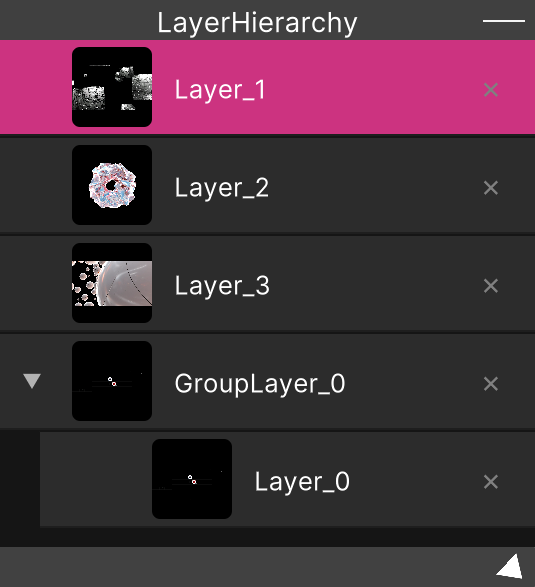
- Layer — the layer side of what you can choose as a source