Building Node Graphs with AI (MCP)
SynapseRack ships with a built-in MCP (Model Context Protocol) server. When enabled, AI tools running on the same computer (Claude Code, Codex CLI, etc.) can create, connect, tidy and group nodes in the graph you currently have open.
Tell your AI “build me this effect chain” and it wires actual nodes into your rack — that is what this feature is for.
This feature is a preview. Only AI tools on the same machine can connect — browser-based Claude/ChatGPT and phones cannot reach it.
Enabling
- Open the MCP Server window from the SynapseRack menu and turn the server ON
- Use the displayed URL (default:
http://127.0.0.1:8765) in your client configuration
For security, the MCP server turns OFF automatically when the app restarts (the port number is remembered). Turn it ON each time you want to use it.
Client setup
The easiest way
You don’t need to edit any config file — just paste the URL into Claude Code or Codex and ask it to connect. The AI sets everything up for you:
http://127.0.0.1:8765/
Please connect to this MCP server.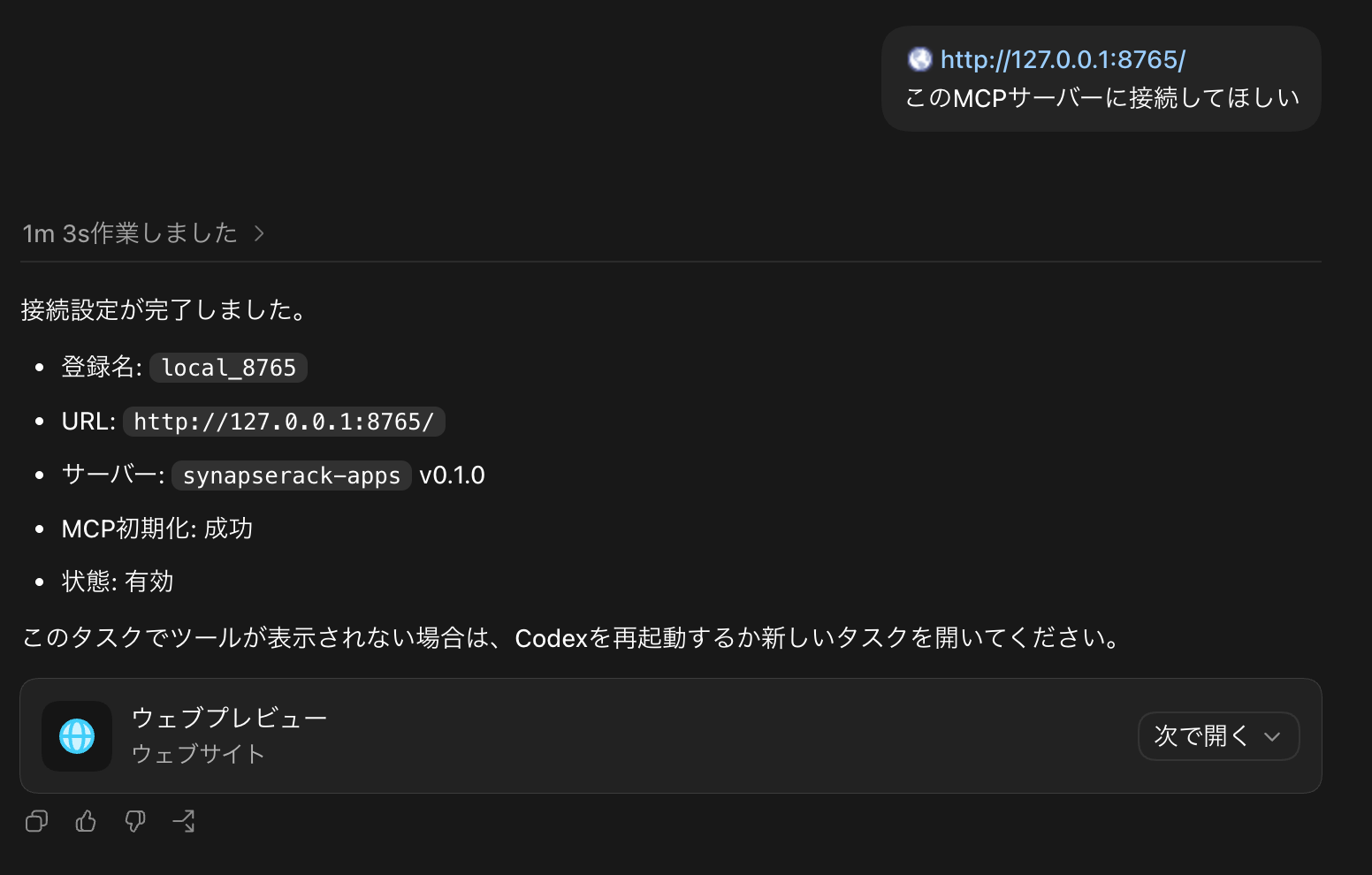
Claude Code
Add this to your project’s .mcp.json (or use claude mcp add):
{
  "mcpServers": {
    "synapserack": {
      "type": "http",
      "url": "http://127.0.0.1:8765"
    }
  }
}
Other clients
Any MCP client that accepts an HTTP URL can use the same URL directly.
Available tools
The tools visible to the AI client. They always operate on the active graph open in the node editor.
| Tool | What it does |
|---|---|
graph_state | Returns every node (id, type, position, ports) and every connection in the current graph |
graph_node_types | Lists every creatable node type (the same list as the node browser) |
graph_create_node | Creates a node |
graph_delete_node | Deletes a node |
graph_connect / graph_disconnect | Connects / disconnects ports (with the same type validation as GUI drag-connect) |
graph_tidy | ”Tidies” the graph — aligns nodes into columns while respecting the current placement; it never re-arranges everything |
graph_group | Folds the given nodes into a Group (same as Ctrl+G, boundary ports generated automatically) |
The Apps SDK development tools (list_apps / invoke / read_console / reload_app) are served by the same server.
Good to know
- Everything the AI does can be undone with Cmd/Ctrl+Z. Changes land in the same history as GUI edits
- While a group operation (group / ungroup / paste / import) is running, and while a project load or undo/redo is being applied, tool calls return a temporary error (retry after it finishes)
- Parameter values can be set through
modules.setviainvoke - As of v3.2.0, the target Layer of Layer nodes (LayerOpacity, etc.) can no longer be changed via
modules.setonselectedLayerIndex. Create aLayerSelectnode, wire it to the Layer input withgraph_connect, and setindexInput— or feed a Layer’s id into astringnode and wire that in instead (see “Switching the target Layer” in the Apps SDK docs for the steps)
If it does not connect
- Check that SynapseRack is running and the MCP Server is ON
- After restarting the app the server is OFF again — turn it back ON from the MCP Server window
- Check that the port in your URL matches the one SynapseRack displays
- Restart the AI client (most clients read their config at startup)